This document is intended to explain step-by-step, how to log into OnPing using a Google or Microsoft account. If you have any questions, the OnPing support team is here to help.
Feature Overview
To sign in to OnPing using your Google or Microsoft account, click the "Sign in with Google" or "Sign in with Microsoft" button on the login page. Follow the prompts to log in with your existing account. If a Google or Microsoft account is unavailable, signing into OnPing with an existing OnPing account will grant access. Once signed in, all of OnPing's features will be accessible without a separate username and password. If any issues arise, make sure the browser has cookies enabled, and the Google or Microsoft account allows third-party authentication. Contact the OnPing support team for help if needed. Thank you for choosing OnPing!
Benefits of Single Sign-in
Single sign-in allows users to log in to OnPing.net using an existing Google or Microsoft account, rather than creating a separate username and password. This feature offers several benefits, including:
- Convenience: Users do not need to remember login credentials, making it easier and more efficient to access OnPing.
- Security: By using the security already in place with Google or Microsoft accounts, single sign-in adds an extra layer of protection for OnPing users.
- Time-saving: Single sign-in saves users time by eliminating the need to create and manage yet another account, reducing the potential for login errors.
- User-friendly: With the use of familiar account credentials, single sign-in creates a seamless experience for users.
Signing into OnPing
Log into Onping.net
Navigate to the browser and type ‘ OnPing.net ‘ into the URL text bar. Once the OnPing homepage loads, click the blue ‘ Login To Onping ’ button in the top right corner of the window.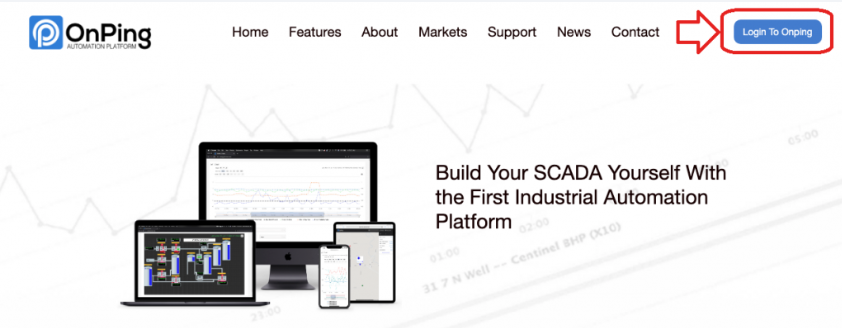
(Option 1): Sign In with Google
On the login screen, navigate to the bottom of the sign-in options and click the gray ‘Sign In with Google’ button.
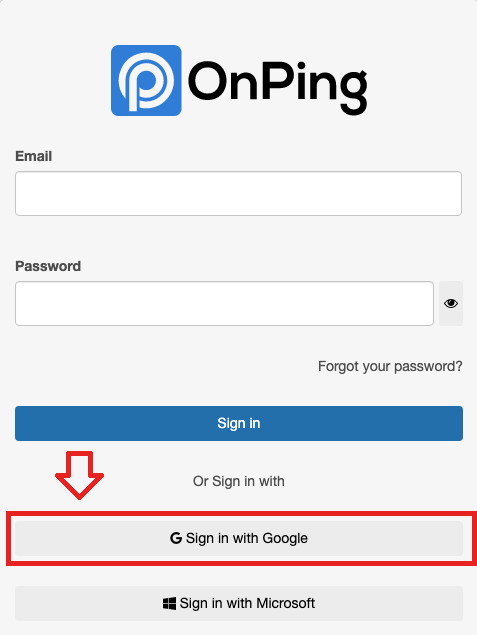
This may redirect the browser to login using an existing Google account. Enter the Google account email or phone number linked to the account in the text bar. Once the account has been entered, click the blue ‘Next’ button to sign in.
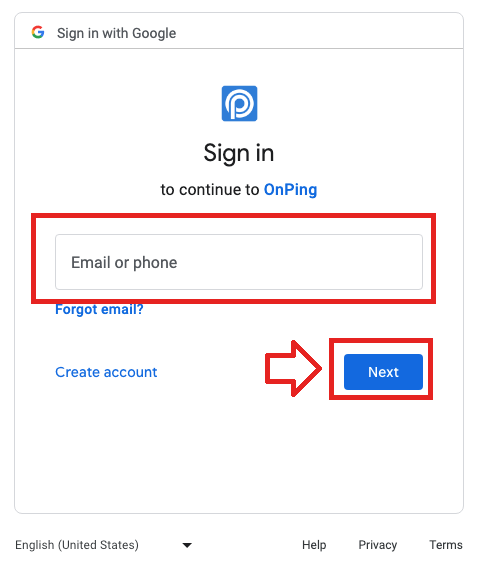
Once the account is properly linked, the OnPing home screen will appear, just as if the OnPing login email was used to log in.
(Option 2): Sign In with Microsoft
On the login screen, navigate to the bottom of the sign-in options and click the gray ‘Sign In with Microsoft’ button.
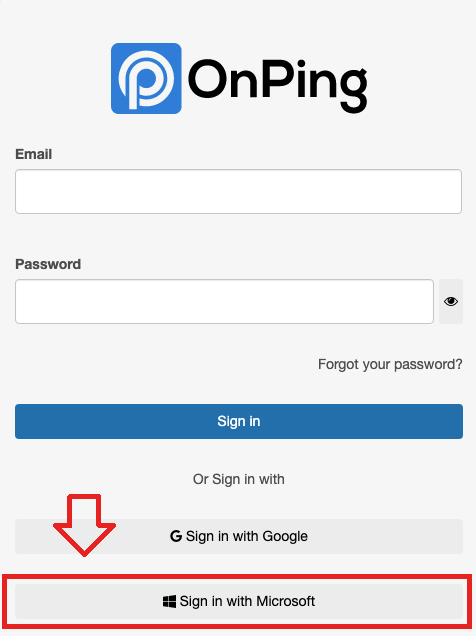
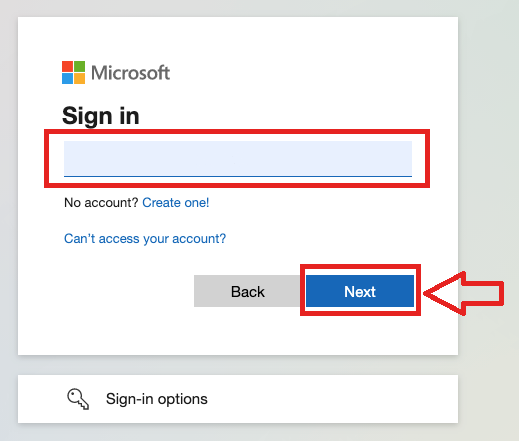
This may redirect the browser to a login page for an existing Microsoft account. Enter the email address associated with the account in the text field. Once the account has been entered, click the blue ‘Next’ button to sign in. Alternatively, Microsoft Sign-in options can be used to log in.
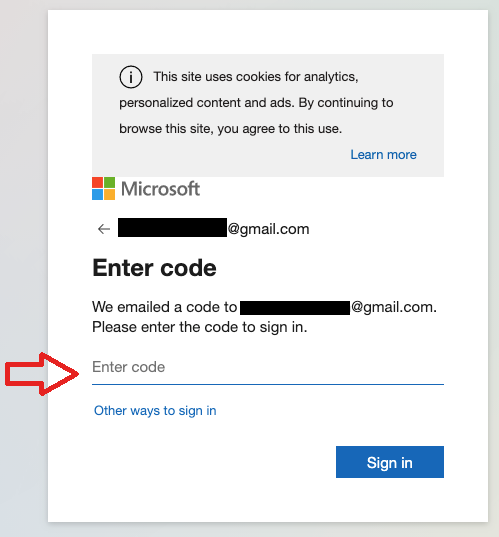
Microsoft will send a code to the email address entered in the step above. Enter the code in the text field where it prompts ‘Enter code’.
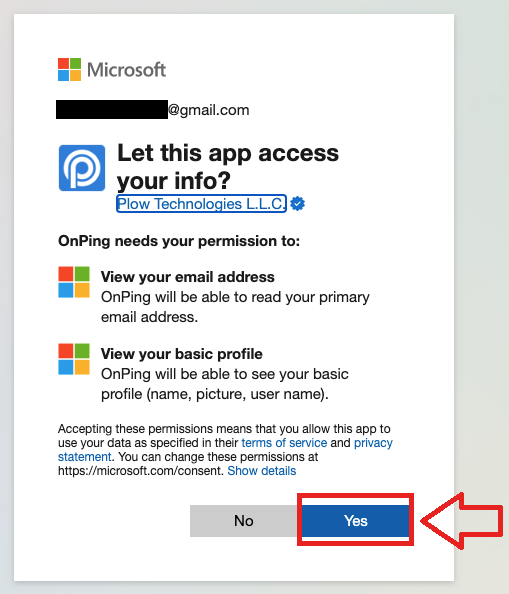
Microsoft will now ask if Plow Technologies L.L.C. can access your info using this app. Click the blue ‘Yes’ button at the bottom of the window to agree.
Once the account has been properly linked, the OnPing home screen will appear as if the OnPing login email had been used to log in.
Was this article helpful?
That’s Great!
Thank you for your feedback
Sorry! We couldn't be helpful
Thank you for your feedback
Feedback sent
We appreciate your effort and will try to fix the article