This guide will explain, step by step, how to create the first script in the new Inferno programming language. Inferno is a hybrid scripting language created by Plow Technologies that brings powerful real-time scripting capabilities to applications that use it. Think of Inferno as Excel scripting for real-time data.
Create a new script
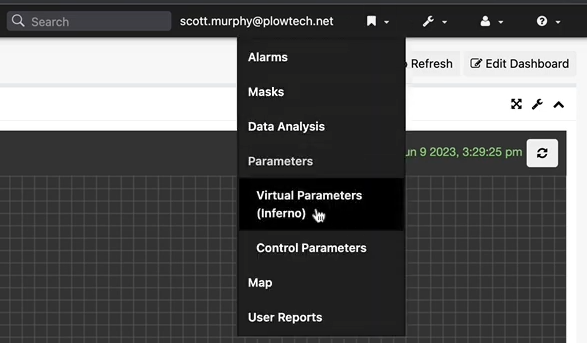
Begin by selecting the bookmark icon. Following this, choose ‘Virtual Parameter Setup’ from the dropdown menu.
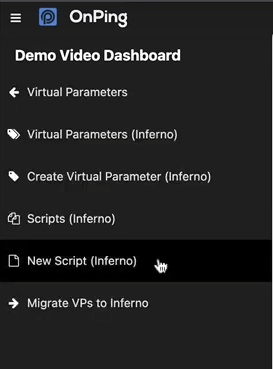
Proceed by selecting ‘New Script (Inferno)’ on the left-hand side menu pane, which will navigate to the text editor interface.
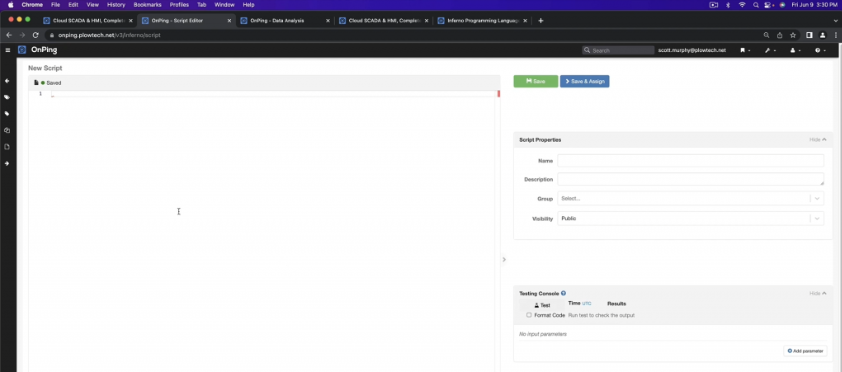
Examine the interface’s distinct parts. The left side features the edit window for script input and indicates its save status. The right side includes the script properties window for naming the script.
For this example, the name of this script is ‘Hello Inferno,’ and a description, ‘Our first inferno script,’ is used. Choose a group for editing permissions and set visibility to control who can view it. The group in this example is set to “plowDemoUsers”.
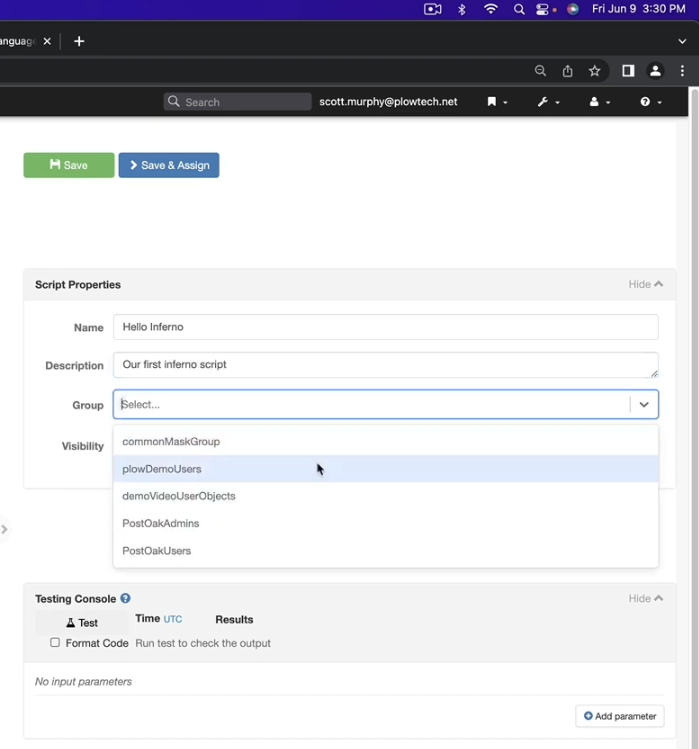
Available visibility options include ‘Public’, allowing everyone to view the script, and ‘Private’, restricting visibility to group members or with admin access to the group. In this example, visibility is set to ‘Public’.
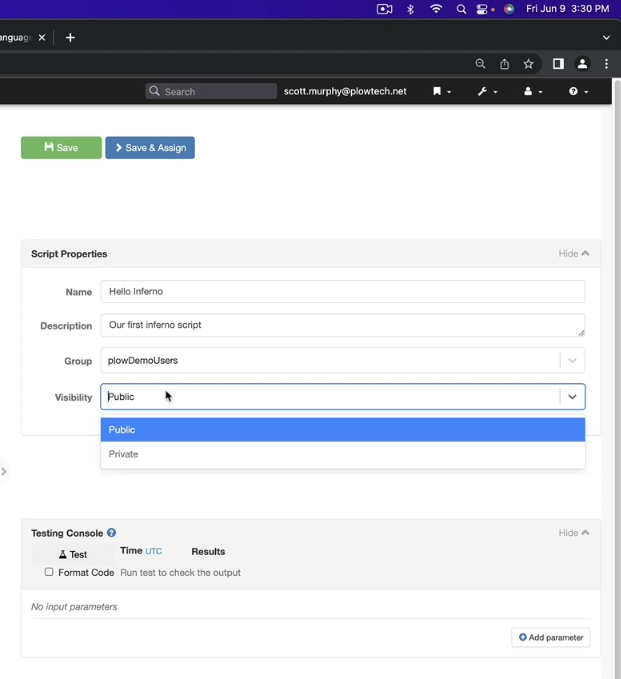
Below the script properties, find the Testing Console window for code verification. Further down, there’s an option to add a parameter. To begin, add a parameter. Selecting ‘Add Parameter’ creates a new field for input assignment.
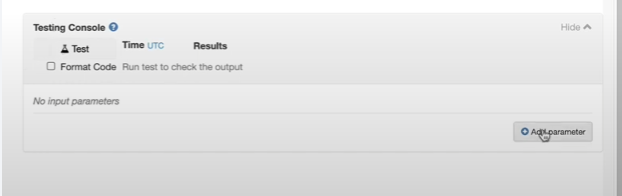
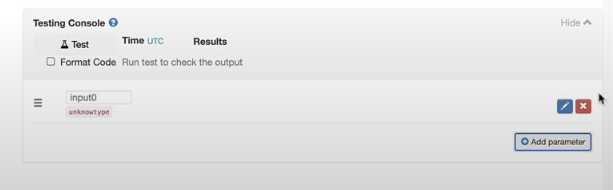
Click on the pencil icon on the newly created parameter.
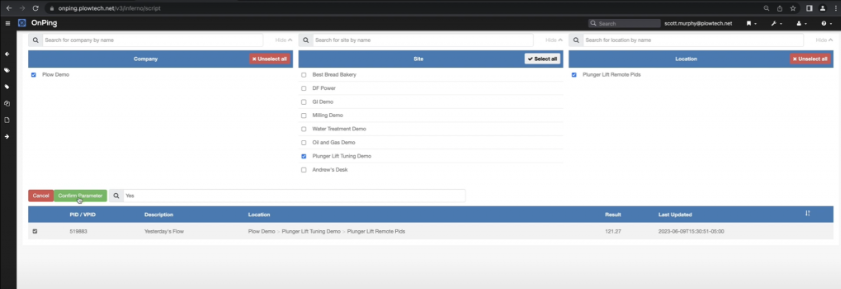
In the example, the ‘Plow Demo’ Company is selected, enabling the selection of one of the demo sites and the option to choose a specific parameter. In the following case, ‘Yesterday’s flow’ parameter is selected. It has to be confirmed by selecting the ‘Confirm Parameter’ button.
In the Testing Console, the parameter is renamed to ‘volume’.
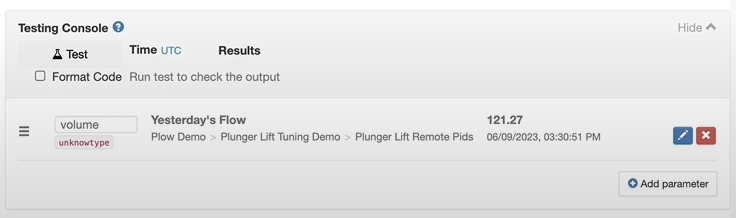
It is now possible to start typing the script. To find the available functions, it is advised to have a look at the OnPing support page (www.onping.net/help/) and type in ‘inferno’ in the search bar and select ‘Inferno Programming Language – Function Reference’.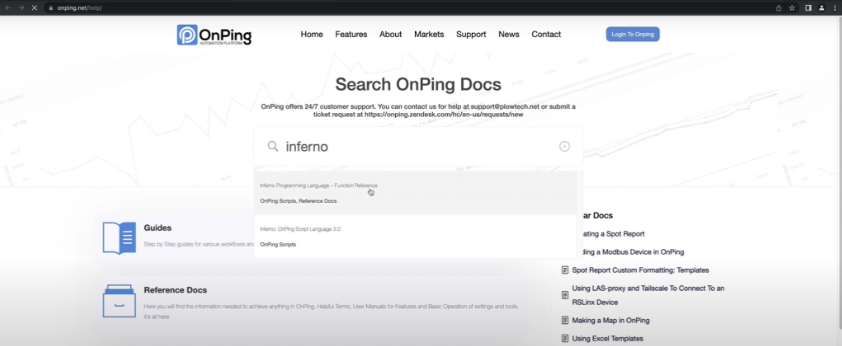
When opened, navigate to ‘Fetching Data From OnPing’ which will list the available functions.
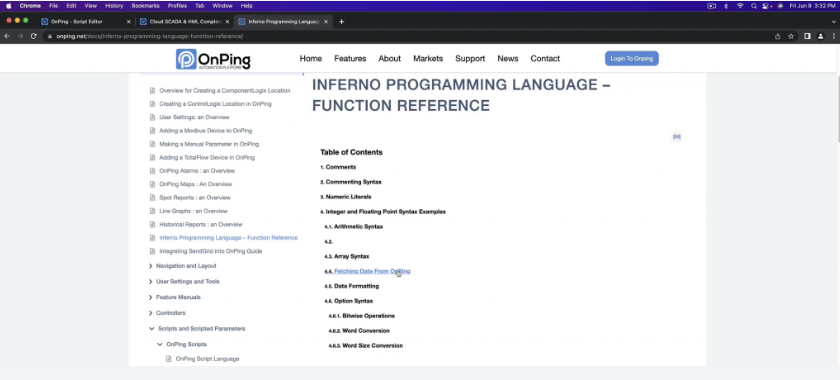
In the following example, the ‘valueAt’ expression is used.
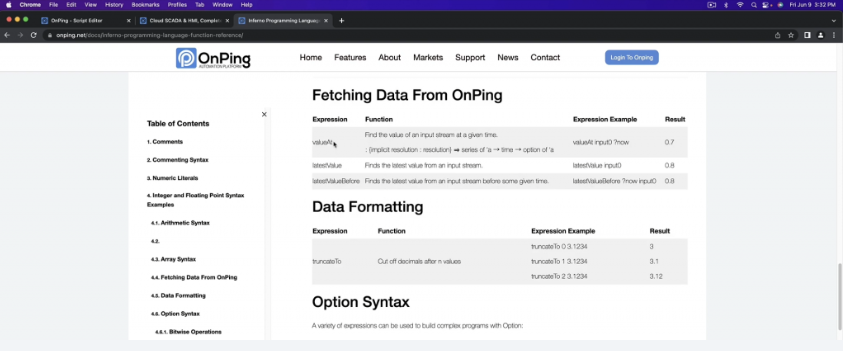
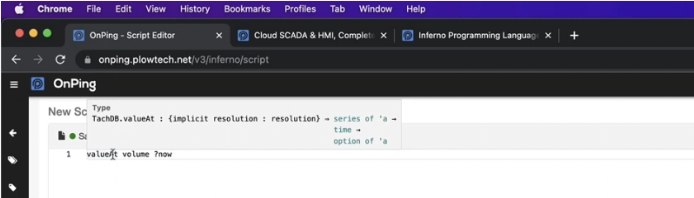
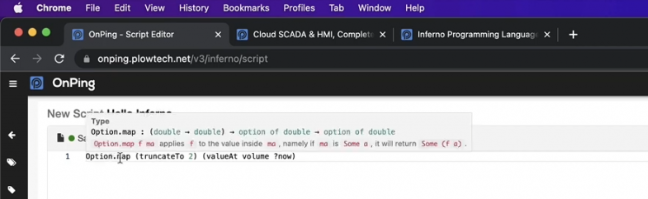
When typing the ‘valueAt’ function, the help hint is visible, which says that this function takes a series of ‘a and a time and returns an option of ‘a (series of ‘a -> time -> option of 'a).
The series of ‘a is a volume parameter in our example. It’s called a series because it corresponds to a stream of values, not just one value.
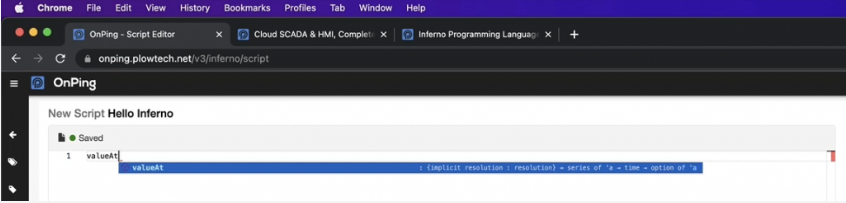
When writing the script to accept the code proposal, the ‘tab’ button has to be pressed.
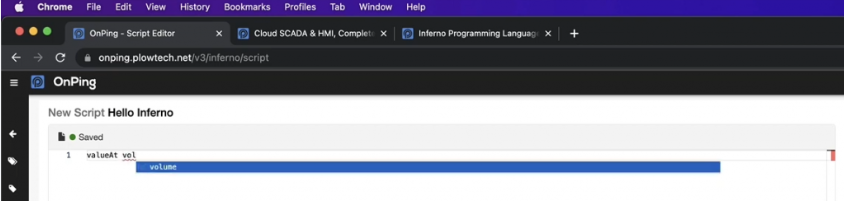
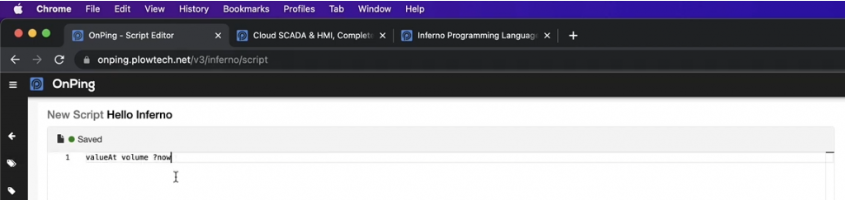
Typed in the script is: ‘valueAt volume’. The next step is to define when the value has to be checked. In the following example, it will be defined as ‘now’. In the next step, the following code is added ‘valueAt volume ?now’.
The reason it has a question mark before ‘now’ is just to say that it is the parameter that doesn’t have to be defined; it’s implicit.
Select ‘Test’ in the Testing Console to verify that everything works.
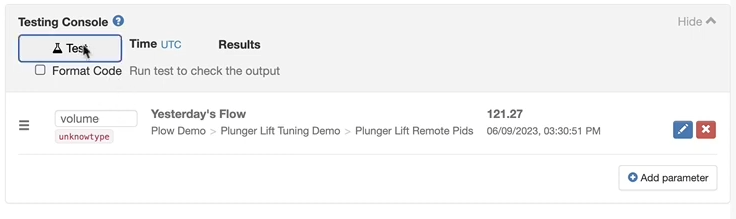
After the test procedure is finished, the result shows 121.27147674560547.
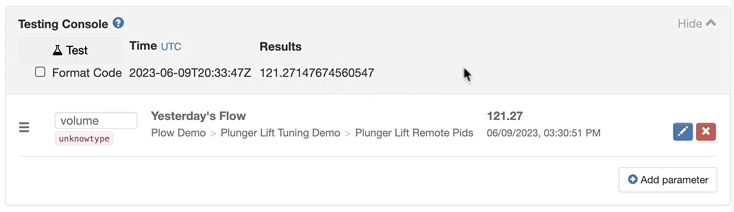
The first Inferno script is completed and tested.
Time Travel mode
For the following example, historical test data is available. The input and output parameters are displayed side by side, and it is possible to view them for the requested time ranges. To enter the ‘Time Travel Mode,’ select the clock icon.
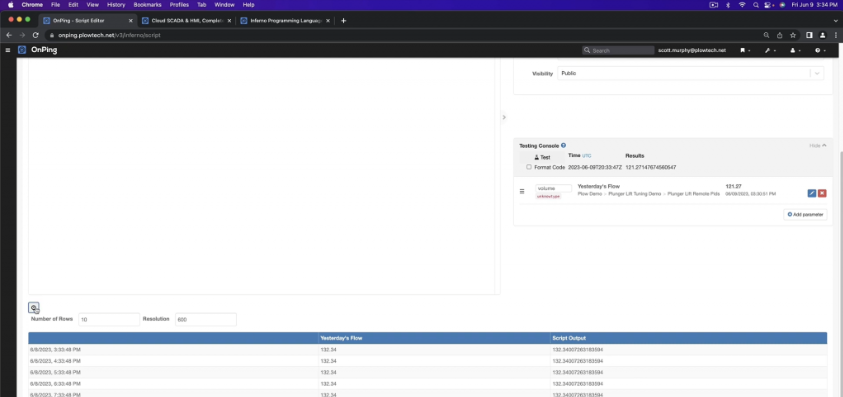
It is possible to select the requested date by typing it in or by selecting it from the calendar.

After adjusting the time range to reload the data, press the ‘Test’ button. The values in the table will then be updated. To return to the initial mode, select ‘Exit Time Travel Mode’.

Trimming Up Decimal Values – Pattern Match
Note that values in column ‘Yesterday’s Flow’ have only two decimals showing and the ones in the ‘Script Output’ have a lot of decimals visible.
Trimming values is a common requirement because input values in inferno are raw and lack pre-applied masks. This explains why certain values might display with two decimal places, often the result of masking applied elsewhere. However, the values that come into the inferno inputs are always raw, so no mask is supplied. Ensuring raw input values helps avoid unexpected behavior.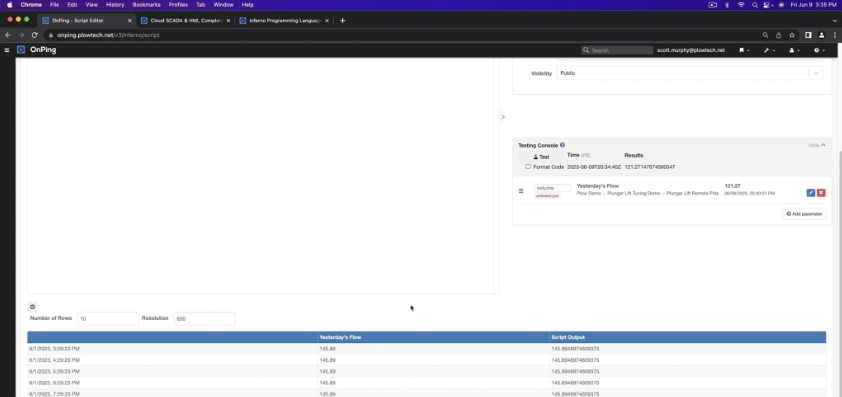
To customize the value display, applying a specific mask is possible. There are numerous methods to achieve this.
First, let’s analyze the last piece option of ‘a from the ‘valueAt’ command. It means that this value may or may not exist.
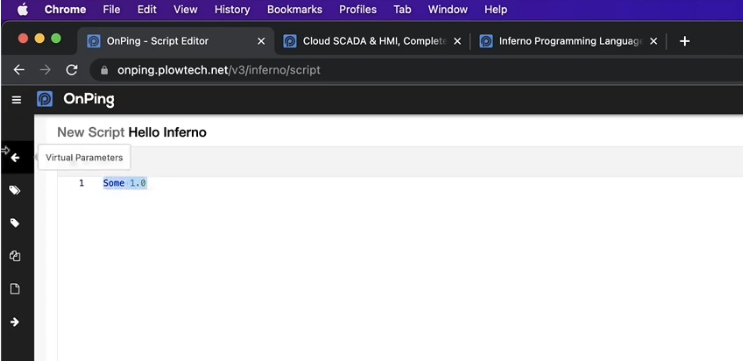
If it exists, it’ll have a value, for example, like ‘Some 1.0’.
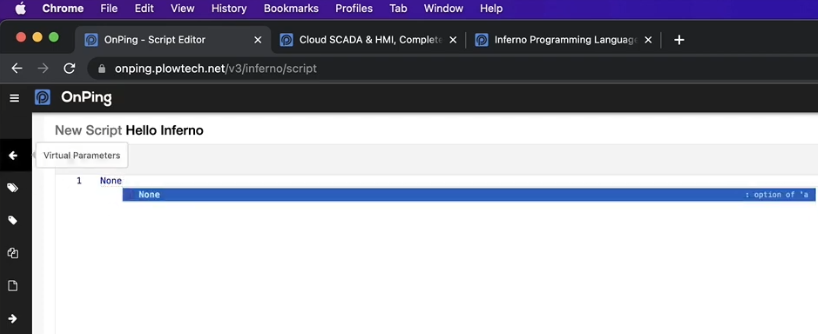
If it doesn’t exist, it will have a value of ‘None’.
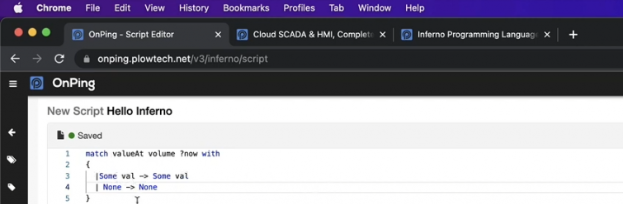
What can be done in OnPing is to match against values using the ‘valueAt’ command. Match ‘valueAt’ and ‘volume ?now’ and then it’s ‘Some value’ or ‘None’. This reproduces the same thing. This is a pattern match to extract this value and then it puts it right back in the same pattern matched against.
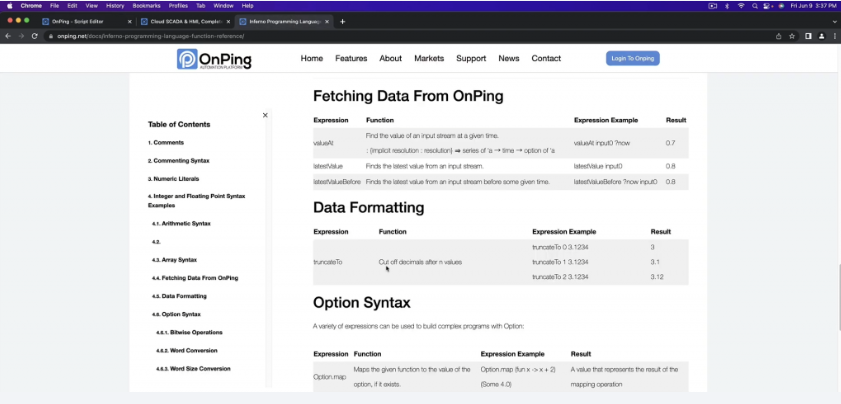
To trim the result, another function has to be added to the existing code. In the documentation, there is a function called ‘truncateTo’. This cuts off decimals after ‘n’ values; it is possible to truncate to 0, 1, or 2.
In the following example, the truncation to 2 is applied. Select ‘Test’ in the Testing Console to verify that everything works. After the test has been finished, values in the ‘Script Output’ column have been trimmed, similar to the ‘Result’ value in the Testing Console.
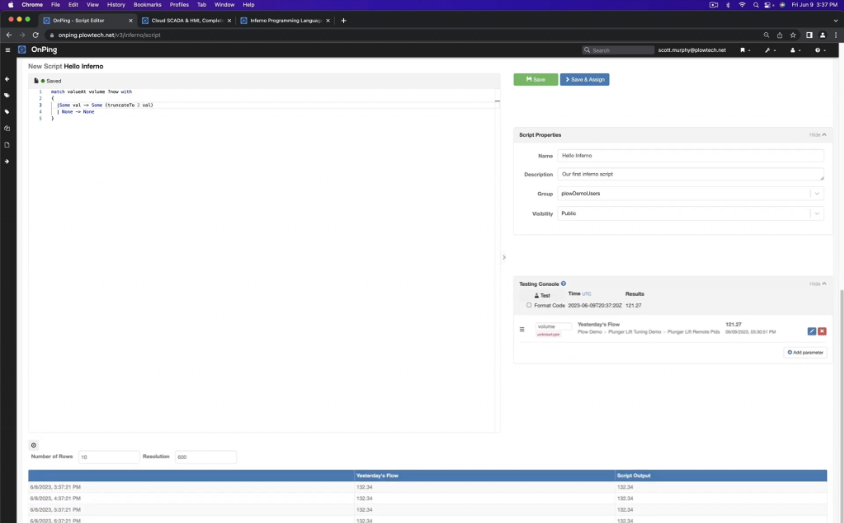
That’s one way to trim the result. The value is pattern-matched and truncated to 2.
Trimming Up Decimal Values – Map
There is another possibility of trimming up the results using the ‘Option.map’ expression with arguments as truncated and the value read. The syntax is as follows:
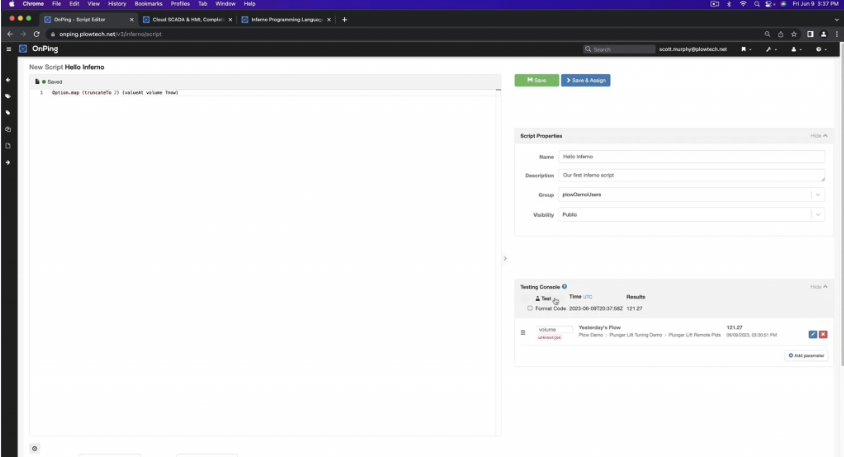
Option.map (truncateTo 2) (valueAt volume ?now)
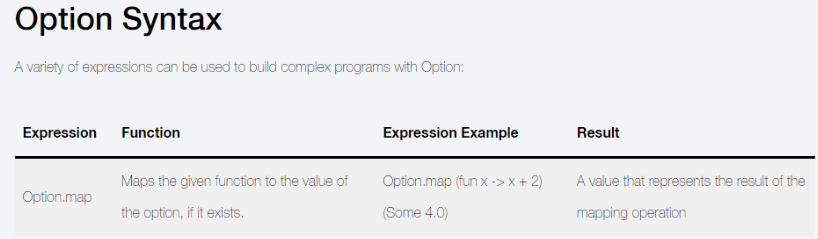
After updating the script, select ‘Test’ in the Testing Console to verify everything works. It produces the same result. The ‘Option.map’ takes the ‘truncateTo’ function and jumps inside of the ‘valueAt’ option and applies the function to it.
Inferno is a functional programming language, and there are many useful features, such as pattern matching and mapping. It also has good type hints that can reveal a lot about what a function is doing.
If you have any other questions about Inferno, please feel free to reach out.
Was this article helpful?
That’s Great!
Thank you for your feedback
Sorry! We couldn't be helpful
Thank you for your feedback
Feedback sent
We appreciate your effort and will try to fix the article