To clear out cache from the Mobile app:
- Log in and add truck/trailer.
- Click settings "gear" icon at bottom right.
- Click "Advanced"
- Enter password. This can be found in company settings in the portal.
- Select the first option: Clear Loads/Config
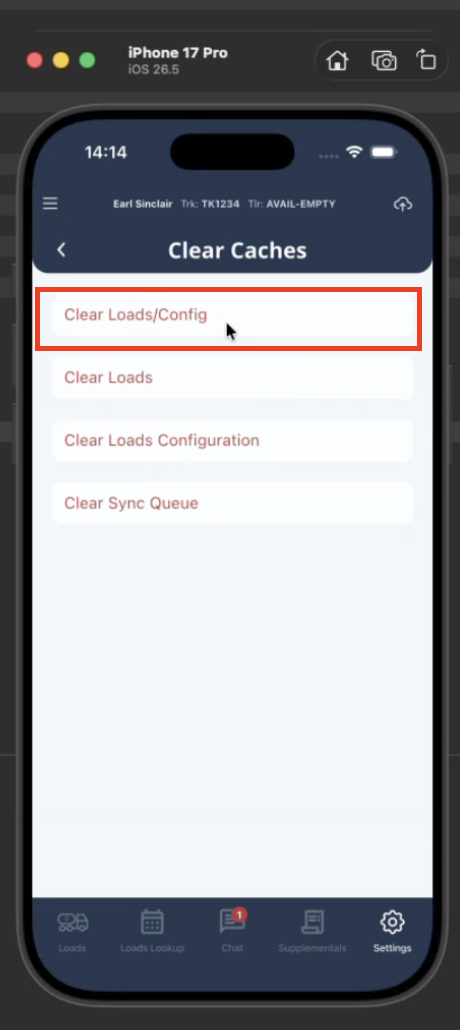
1. Clear Loads/Config: It clears the following
- Clears Loads + Clear Loads Configuration ; 2 and 3
2. Clear Loads
- Load Schedule
- List of loads and data associated
- Commodity level Data and Permissions
- Account Level Permissions/Run ticket suffix
- Location Level Permission
3. Clear Loads Config
- Setup > def > Form and Fields
- Setup > Account Data
- Setup > Locations/Tank Data
- Setup > Company Level Data and Permissions
Clear Sync Queue (DO NOT click this unless u confirm all data is stored on portal)
- Clears load/ticket transactions
- Clear media transactions
Install/Uninstall
When you uninstall app and reinstall. All data is DELETED.
Was this article helpful?
That’s Great!
Thank you for your feedback
Sorry! We couldn't be helpful
Thank you for your feedback
Feedback sent
We appreciate your effort and will try to fix the article