Integrators working on remote equipment often need to connect to that equipment without being on site. This can be a very difficult process. To simplify this process, we developed several tools that facilitate remote access to equipment.
This guide is a step-by-step walkthrough for setting up such a connection on an RSLinx gateway. While we will focus on this particular application, the lessons learned can be easily applied to other systems, such as total flow or Modbus connections.
**Caution is advised! Proxy connections are powerful. They can be extremely helpful, but if you have any questions about why they are used, please reach out to an OnPing technical representative!**
Guide
Setup Tailscale
First, set up your Tailscale account. Then, you need to enable the session in OnPing and on your computer.
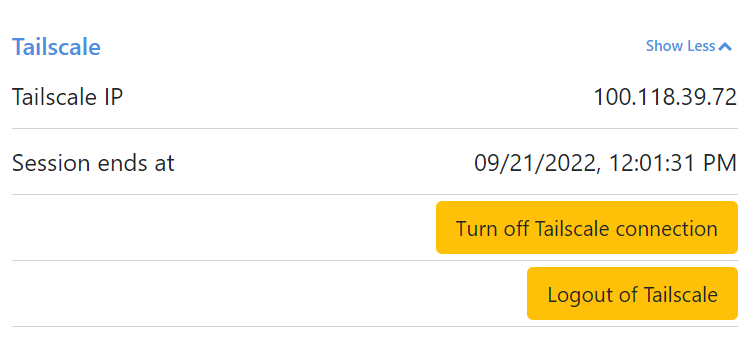
Make sure your Tailscale connection is turned on.
Install LAS Proxy
LAS Proxy needs to be installed on the Lumberjack.
- Set the IP Address
- Set both 'target' and 'listening' ports to match
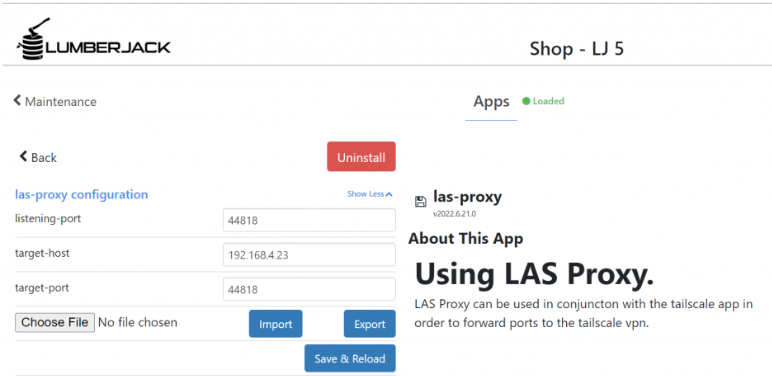 Make sure las-proxy is installed (contact admin if you don't see it).
Once LAS Proxy is set up, the Lumberjack is pingable. You can even check for 'open ports' from your computer.
After completing the LAS Proxy, you may configure the RSLinx device in OnPing
Configure RSLinx
Navigate to 'Configure Drivers'
- Find the 'Communications' tab -Located in the selectable tabs at the top of the application
- Choose 'Configure Drivers'
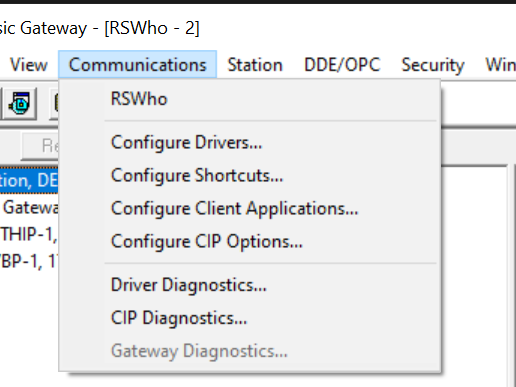
In RS-Linx go to configure drivers.
From 'Configure Drivers':
- Select "Remote Devices via Linx Gateway"
- Then, "Add New"
- Create a distinctive name for the new Driver
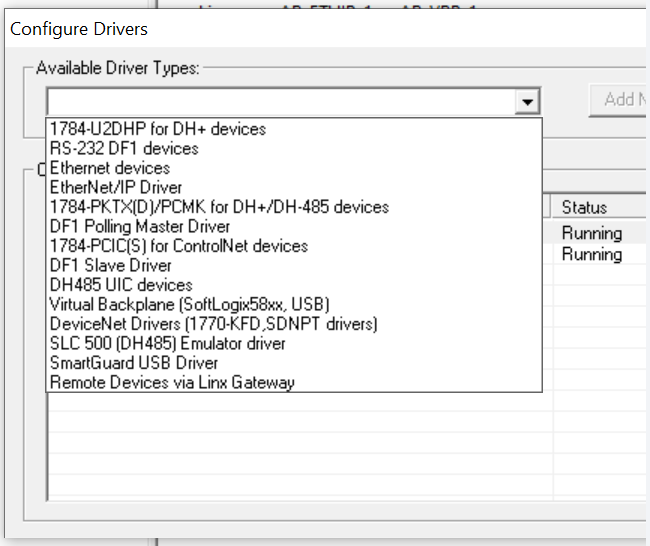
Select "Remote Devices via Linx Gateway".

Select "Add New".
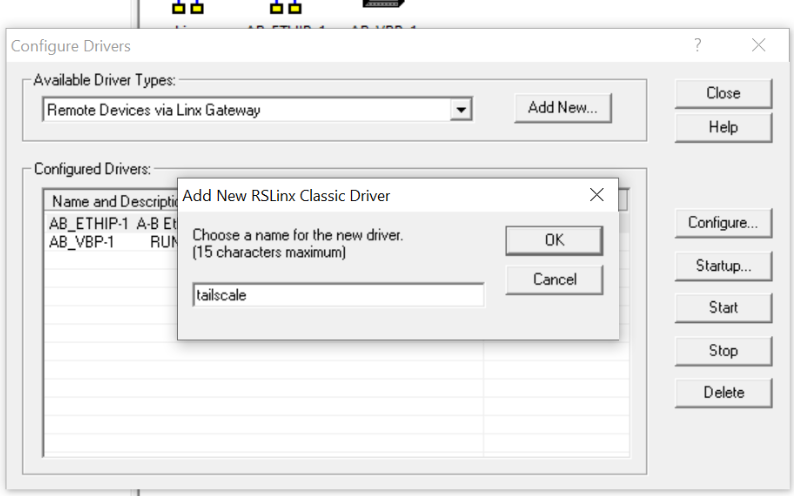
Name it something distinctive.
This gateway will be used to hook up to multiple PLC's so don't name it after a PLC. Instead, name it after the connection type like :LJ746 Tailscale or something.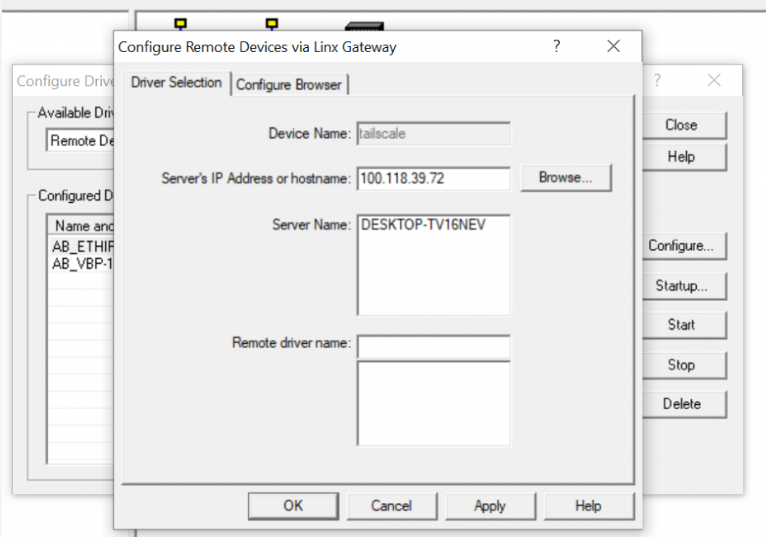
You will then be asked to type in the IP address, this should be the tailscale IP.
**
You will be prompted to input an IP address. This is the Tailscale IP!
**
Use the new Tailscale Driver
- Select the Tailscale driver. It should be newly added to the list of available remote devices.
To confirm the connection is active:
- Navigate to DDE/OPC from the tabs at the top of the application (as done for Communications, previously)
- In the drop down menu, locate the new connection (this is where a good name helps!)
- Click on the connection to reveal a dropdown menu with more details.
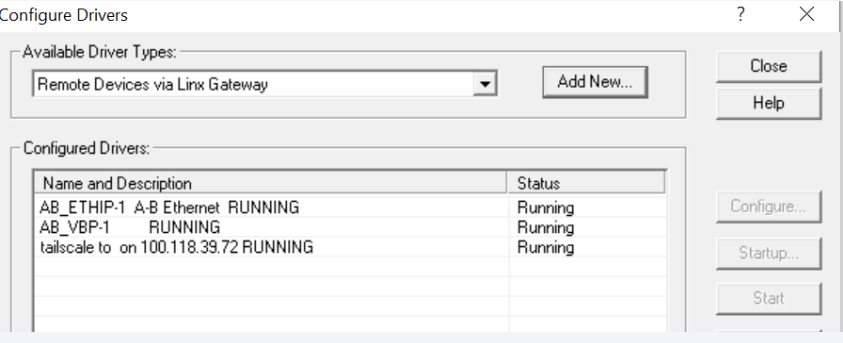 Now the new driver should be in your list!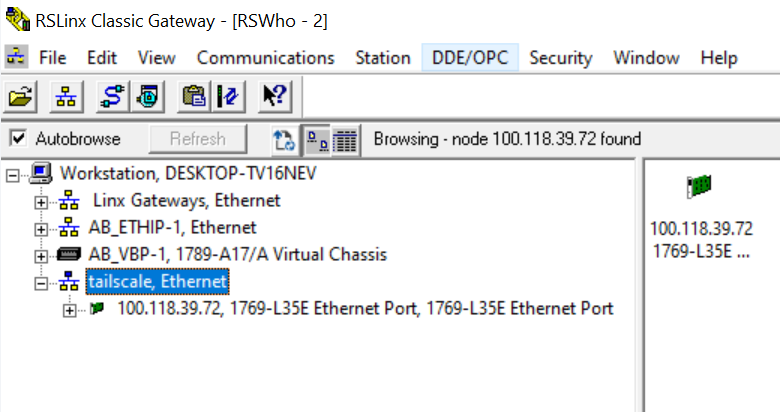
You should see the driver to the connected device!
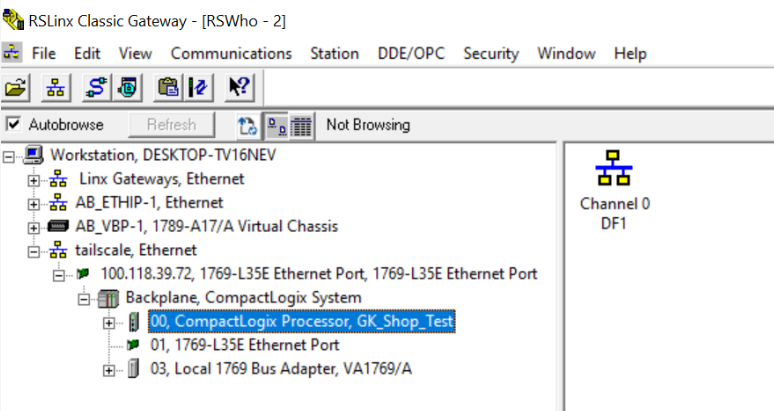
Success!
If you followed these steps, you should now have an active connection to an RSLinx Device via Tailscale. Adjust the IP in the las proxy to see new devices as needed. We recommend exercising caution when using this feature - Proxy connections are powerful tools. Consult your OnPing representative if you have any questions about this feature.
Was this article helpful?
That’s Great!
Thank you for your feedback
Sorry! We couldn't be helpful
Thank you for your feedback
Feedback sent
We appreciate your effort and will try to fix the article