New Mobile App
Enhancements
- Truck Routes and Hazmat Routes are now supported if Drivers uses Here WeGo Application. Here WeGo is a FREE Application. Do not pay for pro version.
- When the Driver clicks Navigation, it will ask them what Map App they want to use. If Here WeGo is installed, they can select it and it will provide them voice turn-by-turn directions to the location using Approved truck and hazmat routes.
- If Here WeGo is not installed, the Driver can click on Install Here WeGo App option, and it will open Google Play to this App and Driver will click install and open. Next time Driver clicks navigation they can select Here WeGo App which will become their default option and routes provided to them will be truck routes and hazmat routes.
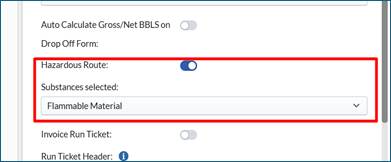
- To Turn on Hazmat Routes, go to Setup > Definitions > Commodities tab and edit the commodities which need Hazardous Routes. Also define the Substances the Driver will be hauling.
- Supplemental Loads and Tickets
- If your trucking company pays Drivers for non-related load activity (training, moving equipment) or deducts charges from their settlements (i.e. Fuel, Admin Fees), a Supplemental Commodity can be added to your portal. Please reach out to the Support Team to help get this Setup.
- On the new mobile App, if Supplementals are enabled, under the 3 horizontal bar hamburger menu a new option is now available called Supplementals. Note* In the legacy Application, Supplemental loads were visible on the load summary screen along with normal loads. In the new mobile App, Supplementals will NOT Appear on My Load Screen.
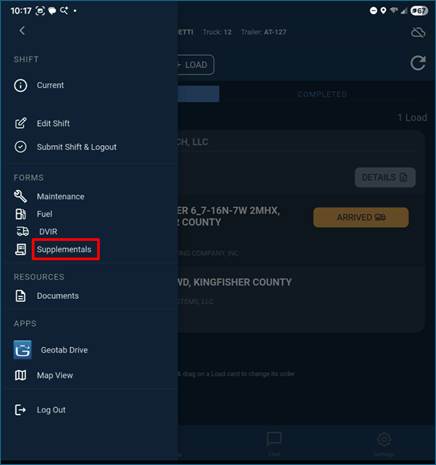
- Once the Driver clicks Supplemental, they will be presented with a form to select which Supplemental type they would like to submit a form for. Drivers can also see Ongoing or Complete Supplementals they have previously submitted.
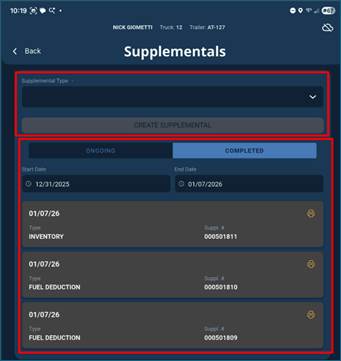
- Driver can select from a drop-down list of available Supplemental types and click Create Supplemental
- The Driver will be taken to the Supplemental form where they will fill out the form, attach photos, record a signature and then they can print a copy or submit the Supplemental
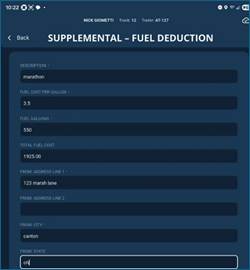
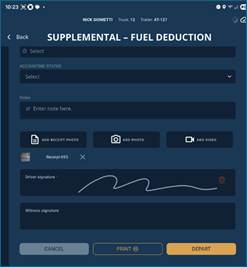
- Supplemental submissions will be sent back to the portal and a load and a Ticket under the Supplemental Commodity. These loads/Tickets can be added to invoices or payroll settlements and incorporated into the rate sheets.
Other New Mobile App Updates
- On Run Tickets, if there are > 1 Drop Off, the Drop Off Ticket # field now Appears on the Run Ticket for reference
- Offline Login. If a Driver accidentally logs out or closes the App and Driver is out of signal, they can still log back into the Application and complete their loads. The moment the Driver does obtain data signal, all transactions will be sent back to portal.
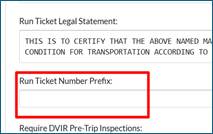
- On Setup > Admin > Company tab, if a Run Ticket Number Prefix has been defined this will now Append itself to the Run Ticket #
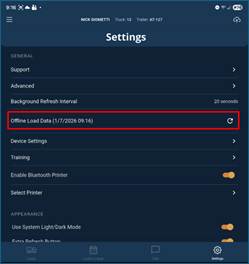
- For Drivers with permission to Add Loads on their mobile device - Offline Load creation is now supported. When a Driver logs in, the App downloads all necessary information, so a Driver/gauger can create a load with no data signal. This download only occurs on the first login of their shift each day. If new Pickup or Drop Off locations have been added midday and Driver needs to obtain these in case they go offline, the Driver can go to settings menu and click the refresh icon next to Offline Load Data. The Driver will also see the last date/time the previous download occurred.
- For companies hauling non-crude commodities, the tank field can be now added to load creation Pickup or Drop Off forms and if this field is also present on the Pickup or Drop Off form, the tank field will be prepopulated with what Dispatch defined at load creation
- If Drivers have permission to do a reroute, we have added an account drop down menu to filter the Drop Off names. In addition, if a Pickup has default Drop Offs in a ranked order, this is now visible to the Driver
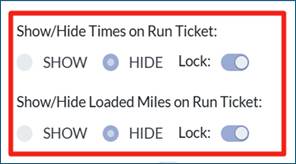
- On Setup > Account, the ability to show or hide TIMES and LOADED MILES on the Run Ticket is now functional
- On Setup > Admin > Company tab, the ability to show or hide the BOL # on the Run Ticket is now functional

- User interface improvements were made to make it easier for a Driver to identify which tab they are on when at a Pickup or Drop Off location. In addition, understanding which field the cursor is in is more evident.
Bugs/Issues
- For Pre/Post DVIR inspections, the icons next to the options for Vehicle Condition (Defects Corrected, Vehicle In Satisfactory Condition, etc). Driver feedback was they icons were confusing them
- If the Field type feet, inch, 1/4 inch was added to a Pickup or Drop Off form, the data was not properly sent back to the portal. This issue has been resolved. This did NOT impact crude forms with top gauge, bottom gauge and bottom height.
- In rare cases, when a split was being performed, the Driver was able to select the same tank. This issue has been resolved.
- Driver login and logout data is now properly being displayed on the Dispatch Board > double click on Driver card > Driver info tab
Was this article helpful?
That’s Great!
Thank you for your feedback
Sorry! We couldn't be helpful
Thank you for your feedback
Feedback sent
We appreciate your effort and will try to fix the article