New Mobile App
Enhancements
- Add/Drop Trailer Logic
- Add/Drop Trailer logic has been added to streamline the ability for a Driver to Add/Drop a Trailer while working on a load.
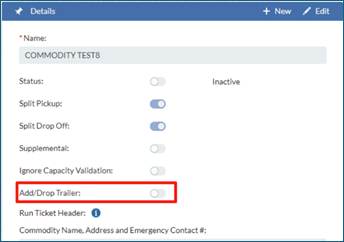
- On Setup > Definitions> Commodity tab, users can enable this feature on the mobile device. By default, this feature is off for all Commodities.
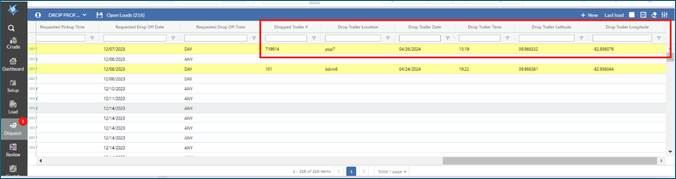
- On the Dispatch board, 6 new columns have been added to the Open Loads profile. Dropped Trailer #, Drop Trailer Location, Drop Date/Time and Drop Lat/Long.
- Ongoing loads assigned to Drivers can be dragged back to Open Load bank now and assigned to a Driver at a future time. Any load which has ticket Pickup info will be highlighted in Yellow so Dispatchers know it’s loaded. Users have the ability to view and edit Load/Ticket data for these type of loads.
- The below features are only enabled if Add/Drop Trailer logic is turned on at Setup > Definitions > Commodity level
- When a Driver is on the following screens of the Mobile device: 1) Load summary, 2) Trip summary, 3) When they Start Load, 4) Driving to Pickup, 5) At Pickup, 6) Driving to Drop Off 7) and at Drop Off; a new button has been added to allow a Driver to Add/Drop Trailer.
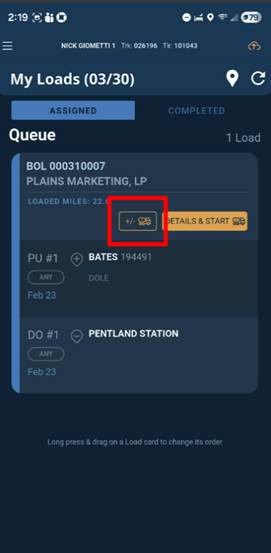
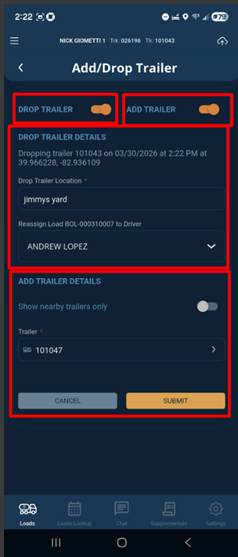
- When Driver clicks Add/Drop Trailer, they will first select which option they are choosing; 1) Add Trailer, 2) Drop Trailer, 3) Add and Drop Trailer.
- Add Trailer
- If Driver is adding Trailer, then they will be able to search for nearby Trailers within a ~500 foot radius of their current location OR select from a list of Trailers the Driver has access to.
- Driver will select the Trailer and save it. This will associate this Trailer to Driver’s shift.
- When a Driver adds a Trailer, if there is a load with ticket Pickup info for specific Trailer, it will ask Driver if they want to assign this load to them. If a Driver confirms the adding of the Load assignment, then the load will become the Drivers next load they work on.
- NOTE: If Driver has a Trailer associated to them already it will not allow Driver to add a Trailer.
- Drop Trailer
- If a Driver is Dropping Trailer, then they will input where they are Dropping it, “Drop Trailer Location Name”. We will automatically capture the following: the Trailer that is Dropped, the Drop date/time and the Drop Lat/Long.
- Drivers also can reassign the load to another Driver. If a load is reassigned that load will automatically be moved to the other Driver as their last load of shift.
- If Driver Drops a Trailer with NO Pickup ticket info, the load will remain on the Driver.
- If a Driver Drops a Trailer with Pickup ticket info, the load will be Dropped from the Driver. Driver will receive a Warning asking them to confirm the Drop.
- All Dropped Trailers with ticket Pickup info will move back to the Open Load bank and highlighted in yellow for Dispatch to reassign.
- Add/Drop Trailer
- Add/Drop Trailer option allows a Driver to add and Drop a Trailer at the same time. All logic outlined in both sections above will Apply.
- Split Loads and Rerouted Miles - When a Dispatcher is building a split load between different Pickup or Drop Off locations. The rerouted miles the Dispatcher input will automatically flow to the mobile App and populate on the general tab and a generic note will be added stating "Additional Miles Between [Location 1 name] to [Location 2 name]". The Driver can edit these reroutes miles and notes if they had to go a different route. These rerouted miles and tickets will be sent back and stored with ticket data and can be used in Finance module for invoice and payroll.
- DIVR Enhancement - For DVIR Setup, we have migrated this from the Setup > Admin > Company tab to the Setup > Admin > Commodity tab. This will allow companies to turn on Pretrip or Post trip inspection functionality at the Commodity level. When a Driver logs in, we will identify if the Driver is associated with any Commodity which requires a Pre or Post Trip Inspection and if associated, they will be required to complete the inspections.
- Bobtail Option
When a Driver logs into Mobile device, there is a new option to select bobtail below the Trailer Drop down menu. Drivers are required to either enter a Trailer # they are hooked up to or can click bobtail if they are bobtailing to first location.
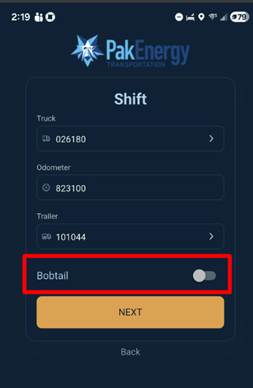
- Historically, Drivers could not start a load if they did not have a Trailer associated to them. We now allow Drivers to start a load with no Trailer, but we have added validation on sign/print at Pickup to require both trucks and Trailer to be defined to sign and print a ticket.
Bugs/Issues
- In some rare uses cases, the data the Driver input at Pickup or Drop Off was printing on the run ticket but was not being sent back to the portal. Multiple fixes and improvements have been put in place to prevent this from happening. And additional logging has been added so if the situation arises after the build, we will be able to investigate with greater precision.
- On the Pickup screen, if the form had Top Gauge, Bottom Gauge or Bottoms and a Driver input these values and then received a “Loads have changed” message or went back to load screen and resumed the load, the input for feet was moving over to inches field. This issue has been resolved.
- A customer reported that a calculated field was not properly being calculated on the Pickup form. Additional fixes and improvements have been made to calculation fields within forms and fields to ensure custom calculations work properly on Pickup and Drop Off forms on mobile App.
- When Drivers were rerouting to a new Drop Off, they were able to select Drop Offs from other Commodities and Terminals. If a Driver has the permission to Reroute to a different Drop Off location, the Driver will only be able to select Drop Offs which are associated to the Commodity and Terminal of the load. This issue has been resolved.
- On load creation Pickup or Drop Off form, if a Drop-down field was being defined by the Dispatcher, in some use cases, this field was not auto populating onto the mobile App. This issue has been resolved.
Was this article helpful?
That’s Great!
Thank you for your feedback
Sorry! We couldn't be helpful
Thank you for your feedback
Feedback sent
We appreciate your effort and will try to fix the article