Once you are logged in to Twilio, click Monitor in the top left corner.
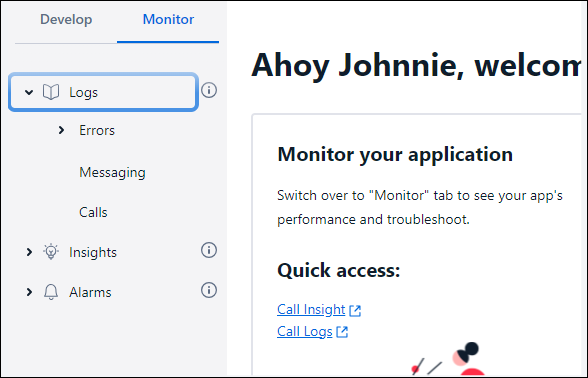
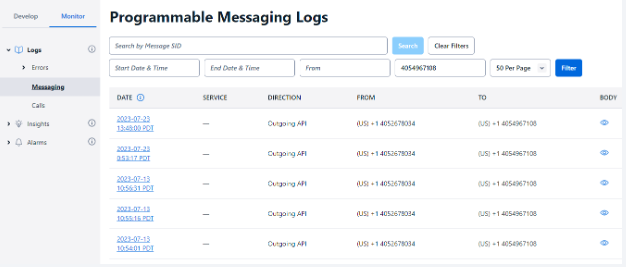
Then click Logs, then Messaging (or calls, if you need to look at a call).
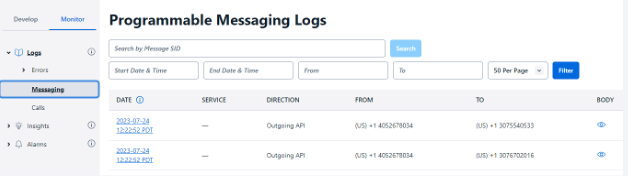
The outgoing number is always the same. It is only used by Twilio for alarms.
The eye icon will tell you which alarm was tripped. (hover your pointer over it)
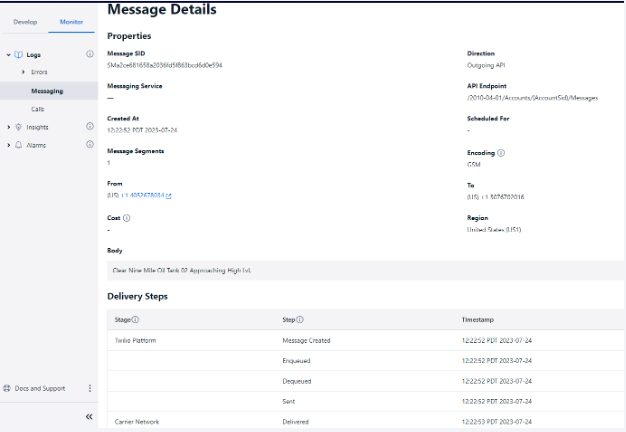
Clicking the link in the date column will show the same information in a different format.
Looking at the logs for calls will show a similar screen but no eye icon for a quick view of the alarm. You will need to click the link in the SID Date/Time column.
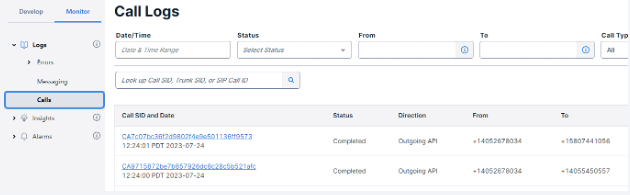
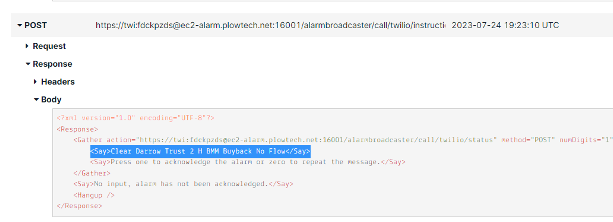
Scroll down to Post. You want the one that has “instructions” in the URL. Then look at the body of that post for a <say> tag. This will tell you what the alarm is.
You can also search for the number that should receive the alarm by entering the number in the To field at the top.
Was this article helpful?
That’s Great!
Thank you for your feedback
Sorry! We couldn't be helpful
Thank you for your feedback
Feedback sent
We appreciate your effort and will try to fix the article