Enhancements
Portal
- Batch By (Select Rollout. Upon Request)
- On Finance > Invoice, a new feature has been added so companies can batch their Invoices in a variety of ways such as: Batching by Account, Account district, BOL #, Confirmation #, Ticket #, Drop Off Ticket # Pickup Name and/or Drop Off Name.
- Within the query parameters a new “Batch by Tier 1” and “Batch by Tier 2” have been added to the query parameters. Pickup Account will be the Default “Batch By” for Tier 1.
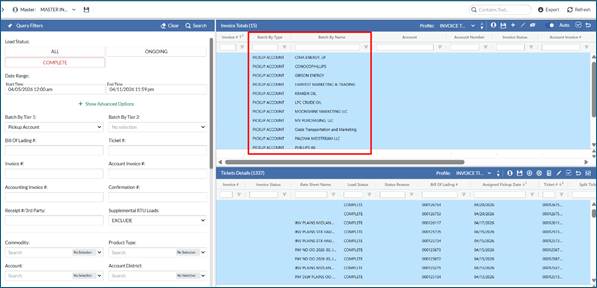
- When user clicks search, it will retrieve all the tickets which match the parameters query fields and in the top grid it will batch all the Invoices based upon the Batch by Tiers defined. Two new columns have been added to the top grid to support this, Batch by Type and Batch by Name. These will be stored with the Invoice when it's created.
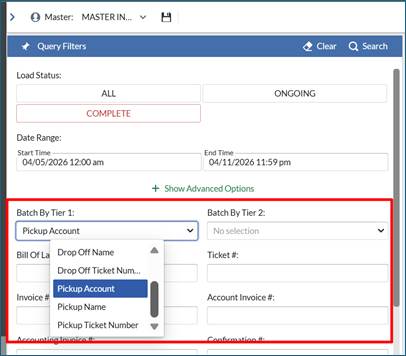
- Batch By Account Example (*Note. if your query parameters have only one Account defined then you will only see one Account in top/totals grid)
- Batch By BOL #
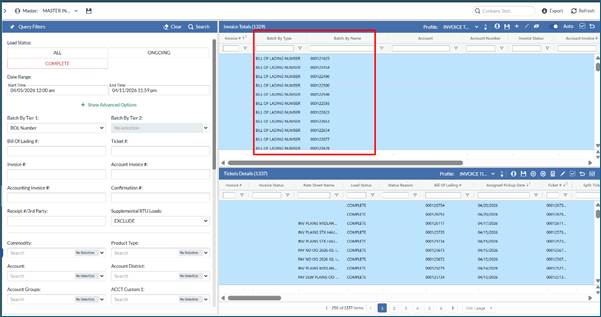
- When user clicks create a new Invoice, the Invoice(s) selected in top grid along with the selected tickets highlighted in the bottom grid will generate a distinct Invoice # per row.
- As an example: If top grid shows batch by Account and there are 4 Accounts listed, it will generate a unique Invoice per Account or if user is batching by BOL # and user sees 100 BOLs in top grid it will create 100 unique Invoices #s for each BOL.
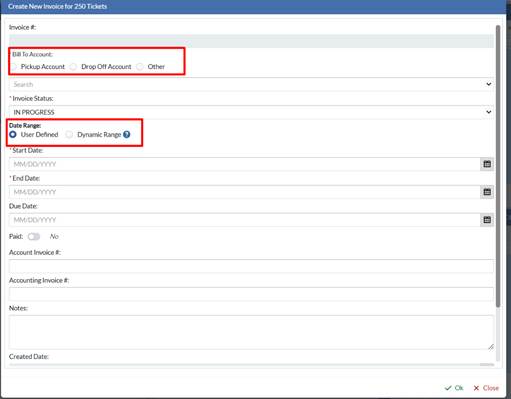
- When user clicks create new Invoice, there are two new options available;
- Bill To Account or Invoice Start/End Date.
- The Bill To Accountcan be dynamic now. The user can define if they want the bill to of the Invoice to be Pickup Account, Drop Off Account or Other. Other allows user to define any Bill To from a drop down.
- Note: If Batch by Tier is defined as Pickup Account, only Pickup Account or Other are available options.
- The default Bill To will be set to pick up Account. Same logic if you batch by Drop Off Account. User can only select Bill to Drop Off Account or Other.
- The Start/End date of an Invoice can be “User Defined” or “Dynamic”. Default is “User Defined”. If user selects “Dynamic” for the given Batch by Row/Invoice it will identify the first completed ticket and use this as the start date. It will identify the last completed ticket and use this as the end date. If a user is batching by ticket #, the start date and end date will be the same.
- For existing Invoices created prior to the new batch by feature. Please be aware Batch by Type and Batch by Name will be empty for these. Users will still rely on Account column to determine who this was billed to.
- Once Invoices are generated, the Batch by Type and Name are defined and stored. If a user searches by a new Batch by Type (ie, BOL #) and tickets queried are tied to existing Invoices by a different Batch by Type. Those Invoices will display with the stored Batch by Type/Name.
- Any ticket which is not associated to an Invoice will be batched in top grid according to the Batch by Type.
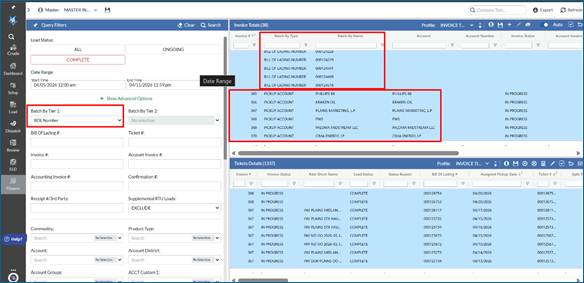
- On Finance > Payroll a user can Batch by Driver, Contractor and Truck. Batch by Tier 1 and 2 have also been added to the query parameters. The payroll screen has always been Batched by Driver by default. Users can now Batch by Contractor and Truck.
- In the top/totals grid, Batch by Type has been added as a column. The column Driver is now labeled Batch by Name
- When a user Batched by Contractor, it will search the tickets and find all Contractors associated with those tickets.
- Note: when Batching by Contractor, tickets completed by Company Drivers will NOT appear in top grid or bottom grid.
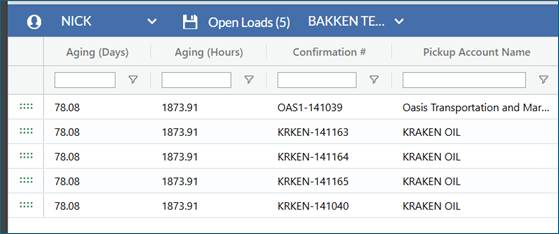
- Aging Fields: Companies can now view how long a Load has aged based upon aged days and/or hours and define if requested Pickup Date/Time or Load creation Date/Time is used within the calculation.
- On Load > manage Load > Open Load grid, Dispatch Board > Open Load grid and Review screen profiles, Aging Hours have been added as an available fields. The existing Aging Days field has also been updated to include 2 decimals.
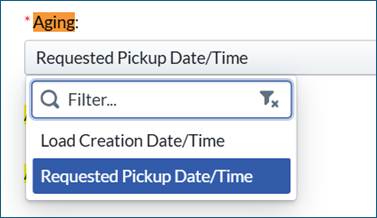
- On Setup > Admin > Company > Left column, a company can define if they want to define Aging based upon requested Pickup Date/Time or Load creation Date/Time. Default is requested Pickup Date/Time.
- For the Aged day/hours calculation. If company is using requested Pickup Date/Time and Load was generated with a generic time range of any, day, night. We are converting any and day to = 7:00am and night = 7:00pm.
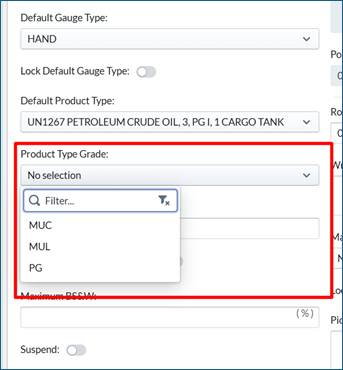
- On Setup > Pickup, Product Type Grade attribute has been added.
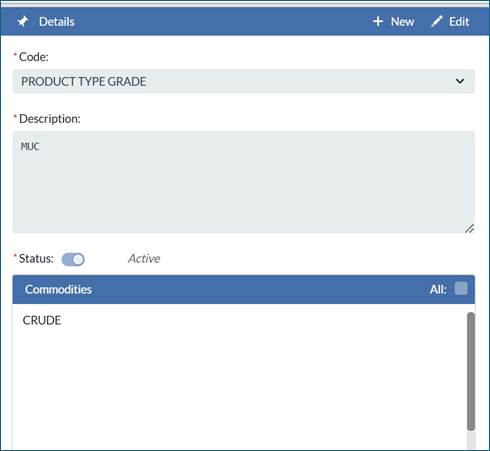
- Product Type Grade codes can be added on the Setup > Definitions > Code tab and each Product type grade can be associated to Commodities
- On Setup > Pickup, the product type grade can be defined and the options available will be based upon the Pickups/locations commodity.
- Pickup Screen
- Code Tab
Mobile
- NA
API
- The inbound Load API has been enhanced so Loads can be created with only Pickup information. Drop Off information or a defining a default Drop Off at Pickup level is no longer required.
- On inbound and outbound Setup > Pickup API, Product Type Grade has been added as a new attribute.
Bugs/Issues
- On the Load/ticket detail screen, Pickup or Drop Off Wait Time were limited to 999. This field has now been updated to allow a wait time of maximum of 9999
Was this article helpful?
That’s Great!
Thank you for your feedback
Sorry! We couldn't be helpful
Thank you for your feedback
Feedback sent
We appreciate your effort and will try to fix the article