** This overview covers the HMI Widget. For information about edge-located HMIs, please refer to the HMI Local Overview **
Introduction
Welcome to the introductory primer for the OnPing HMI widget. This document reviews the basic information a User will need to navigate HMIs in OnPing.
What is HMI?
A Human Machine Interface, or HMI, manages communication between people and machine systems. In OnPing, this job is handled by the HMI widget – a user-configurable tool.
The HMI widget fulfills traditional HMI needs with responsive graphic displays, live data stream feeds, and simple control configuration. Furthermore, the HMI widget leverages the OnPing platform to enable flexible design choices and encourage a high degree of experimentation.
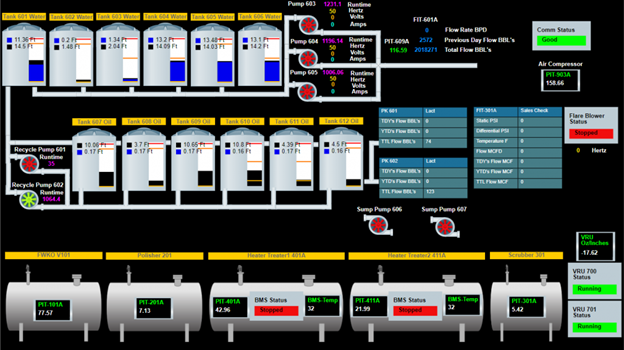
Example 1.0 – An example HMI for a water tank and pump system
A basic understanding of HMI in OnPing is important because so much of OnPing is built around this idea of simplifying data to make information easier to see and act on. This document introduces HMI and highlights the key features of the widget.
The Role of HMI in OnPing
HMI can fill several roles for Users, including:
- Visual representation of devices, facilities or systems
- Insight into current system conditions
- System control interface
How an HMI will be used, who will interact with the interface, and what information needs to be communicated are each factors that will contribute to the final design of the HMI.
** Future mentions of HMI in this document refer to the HMI widget **
HMI: Basic Parts
HMI is a full-featured application with a vast set of possible configurations. For the purposes of this introduction, we want to simplify the feature set down to some core elements. The basic composition of an HMI consists of these parts:
- Components
- Parameters
- Background/Field
Each part has its own set of configurable properties and a role to play in the design of an HMI. There are other features we will mention in this document, but these are the most basic elements of an HMI.
Components
There are 2 main types of Components, each with its own set of advantages:
- Pre-made
- Pre-made images for the HMI are publicly available to all users
- The library is managed by OnPing.
- User-Made Images
- Image Holder
- Upload images made by your team or found online
- Git Backed Images
- Display images stored in a GitHub repository
- Enables universal image updates
- Provides a central home for graphic storage
- Image Holder
Components are very important. They form the visual backbone of your HMI. Every object you see in the HMI is a Component. Without them, there wouldn’t be much of a reason to use an HMI in the first place!
***
Example 1.1
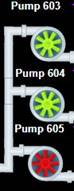
In Example 1.1 Pumps spin and turn green when ‘On’. They are stationary and red when ‘Off’. Also shown is a non-interactive Component – the pipe!
***
Components also serve as the interactive medium in HMI. Connect them with data streams to enable device control and management from your screen.
Parameters
Speaking of data, Parameters represent data streams in OnPing. Any time a value is read, a write occurs, or a script is written, a Parameter is being used.
For an HMI to be interactive, Parameters must be assigned to Components. The Parameters you choose and how they are configured will determine whether the HMI is ‘Read-Only’ or if it has Control functions, so consider the purpose of the HMI before configuring the Parameters.
***
In 1.1, Components move and change colors based on readings from a Parameter
***
HMI Background or Field
The HMI Background will house the Components. The size and color of the Background may be modified to optimize for a variety of devices or to improve contrast and visibility. All visual components in the HMI will exist within the HMI Background.
HMI is a layer-based environment. Move Components forward or backward to make them appear “in front of” or “behind” other components. Creative use of layering can create special effects or make a set of Components fit better within an HMI view.
Configuration Panels
Configuration Panels are available at each level of the HMI widget:
- Components
- Alerts
- HMI Background
***
Configuration Panels are available in ‘Edit’ mode. Enter ‘Edit’ mode by clicking the ‘Wrench’ icon in the top right of the widget.
***
Below, 2.0 shows a new Component Configuration Panel:
Example 2.0
In the Configuration Panel, you will find a list of attributes that can be modified. This is where you can change the size, position, and color. This is also where you can assign Parameters to a Component.
***
Some attributes – like color – can be set to update in real time based on a Parameter's status!
***
Where Are the Configuration Panels?
Alerts and HMI Background Configuration Panels will appear in the ribbon at the top of the HMI widget.
To open the Component Configuration Panel:
- Click on an existing Component in the HMI
or
- Open the Component Selection menu with the Green ‘>’ button and select a Component
Alerts
Another feature of the HMI widget is the Alerts system. Alerts provide notifications about important activity in HMI. The configuration panel for Alerts can be accessed via a button in the top-right corner of the HMI display in Editing mode.
The Alerts feature is ‘Read Only’. Choose a Parameter to monitor for activity, and set rules to generate an Alert based on that Parameter’s activity.
***
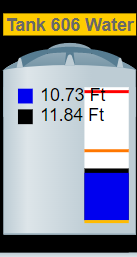
Example 1.3
Alerts are commonly used to generate notifications for a tank level. It might be useful to know that the tank in 1.3 is getting close to empty.
***
Alerts are less powerful than Alarms or device control. They are meant to bring attention to interesting activity. For more intensive operations, read our documentation for Alarms in OnPing.
Import/Export
Import/Export is located in the top ribbon of HMI in edit mode. The functions work in tandem with one another.
- ‘Export’ creates a file with the configuration data from the HMI.
- ‘Import’ an HMI file to create a complete copy of a previous HMI, including Background settings, Components, and active Parameters.
Import/Export is especially useful for creating a new Dashboard or Panel that puts a new context around the HMI.
***
Example: A Production Manager position is created in an organization that needs a new Dashboard – but the Production Manager still needs to see the current HMI. Import/Export makes it easy to bring this new position into OnPing without the hassle of rebuilding the HMI.
***
Another common application of Import/Export is to standardize HMI displays across a set of User Groups or to replicate displays for common, low-variance systems. Now you will only need to set the new HMI Parameters, instead of recreating the visual components one at a time.
***
Use ‘Export Data Only‘ to export a file to your desktop that contains a list of data parameters for the HMI and their associated values.
***
Summary
HMI is a very important feature that serves in several capacities. This guide reviews the basics of HMI, but the feature is expansive and impossible to cover in a single document. OnPing encourages you to experiment with features like HMI to explore new possibilities to discover the potential of your data system.
Was this article helpful?
That’s Great!
Thank you for your feedback
Sorry! We couldn't be helpful
Thank you for your feedback
Feedback sent
We appreciate your effort and will try to fix the article