One of OnPing’s most popular features is its HMI (Human-Machine Interface) system, which lets users create visualizations and integrate control mechanisms when interacting with their equipment. New users may need some time to adjust to OnPing’s unique approach to HMI configuration.
In addition to the standard technical requirements, several best practices can enhance the functionality of the HMIs you design in OnPing for end-users. This style guide will provide opinionated recommendations on what to do and what to avoid.
If you want to see some HMIs we have created that we think are well styled for their applications, we have created a few HMI templates to help you get started.
Use lots of screens and panels
Utilize multiple screens and panels in OnPing. This platform allows you to create mini-sites for better organization. Since you can design as many HMIs as you desire, it’s recommended to create separate views for different scenarios.
Web HMI is not the same as Panel HMI
Keep in mind that this is a web-based HMI, not a panel HMI. Individuals responsible for building HMI in OnPing often have a background in automation or industrial programming and may be accustomed to creating HMIs with overlapping layouts and visibilities. OnPing’s HMI is designed to be responsive and adaptable to various screen sizes. To ensure a more reliable user experience, some advanced visibility features have been sacrificed.
Take Advantage of Mobile and Other Aspect Ratios
Here are the supported aspect ratios in our HMI and some common devices they are used for.
16:9:
- Samsung Galaxy S5
- LG G3
- Most standard HDTVs and computer monitors
9:19.5:
- iPhone X
- iPhone XS
- iPhone 11 Pro
5:4:
- Dell UltraSharp 1704FPV (17″ monitor)
- HP L1950g (19″ monitor)
5:3:
- Mitsubishi Electric GOT2000 Series HMI (5.7″ screen)
- Panel View Plus 7
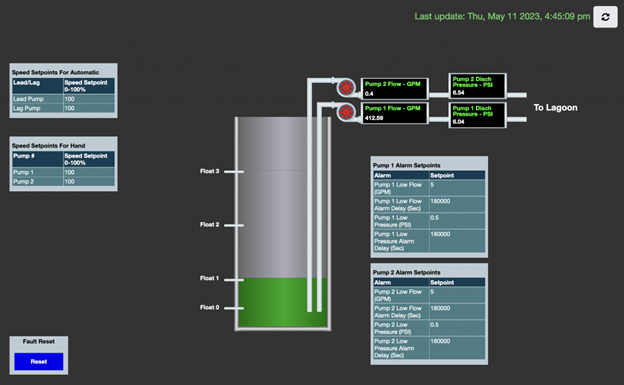
The two most commonly used sizes are 16:9 and 9:19.5. 16:9 is our default aspect ratio. 9:19.5 is the iPhone aspect ratio.
16:9 Aspect Ratio
9:19.5 Aspect Ratio
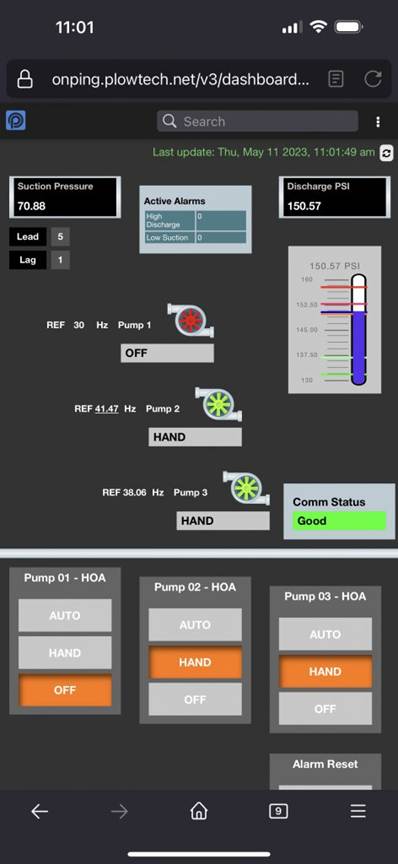
OnPing will responsively size HMIs to adapt to your display. However, custom-building displays for specific screens will always give you better views.
Use HMI Linking
HMIs can be linked together. You can add a label to an HMI and use it to connect multiple screens. This lets you create navigation systems that work within the HMI itself. You can use multiple links to give your main page a menu-style interface.
Example Panel Link
(missing video)
Example Custom Table Link
(missing video)
Example HMI Link
(missing video)
Use Tables For Grouping
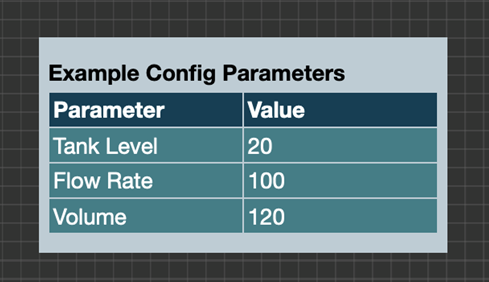
OnPing’s HMI Tables provide a convenient way to organize data sets with corresponding labels. We recommend utilizing HMI Tables over free labels whenever possible, as they offer greater ease in moving and managing data blocks.
Was this article helpful?
That’s Great!
Thank you for your feedback
Sorry! We couldn't be helpful
Thank you for your feedback
Feedback sent
We appreciate your effort and will try to fix the article