New Mobile App
Enhancements
- 3rd Party Contractor Workflow. The purpose of the 3rd party mobile workflow is to allow drivers who work for a 3rd party company in which you do not dispatch their drivers in your system, can complete loads using the same app as your drivers. The 3rd party drivers will complete the load in real time and follow a similar workflow to your dispatched company drivers or owner Operators. 3rd party drivers will download and use the same app.
- If you would like 3rd party trucking company drivers to complete their loads when they are working on them, on Setup > Driver screen, turn on “Is 3rd Party Trucking Company” flag to be On/True.
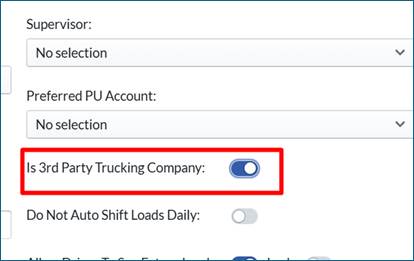
- We recommend that an Auth0 email be set up and given to this generic 3rd Party Trucking company driver using a generic email address, so that the 3rd party trucking company dispatchers or operation team all have access. This will ensure if the password needs to be reset it can be done efficiently and communicated to all their drivers. A 3rd Party Driver will need the Auth0 email to login to the app.
- When the 3rd Party drivers open the PakTransport app they will enter the generic Auth0 email and password given to them by Dispatch/Operations
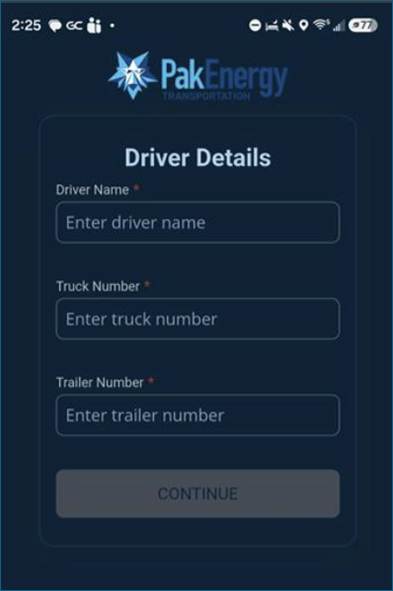
- After the 3rd Party Driver enters their Auth0 email and password, the driver will be directed to add their driver name, truck number and trailer #. This will be stored in the 3rd party section of the ticket
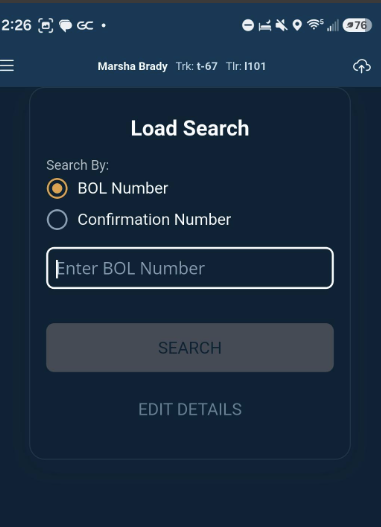
- Next, the driver will input a BOL # or Confirmation # provided by their dispatchers. The BOL/Confirmation # is the one which originated in PakTransport and was shared with the 3rd Party Trucking Company.
- The BOL or Confirmation# the driver inputs MUST match a load assigned to the generic 3rd party trucking company or the driver will receive an error.
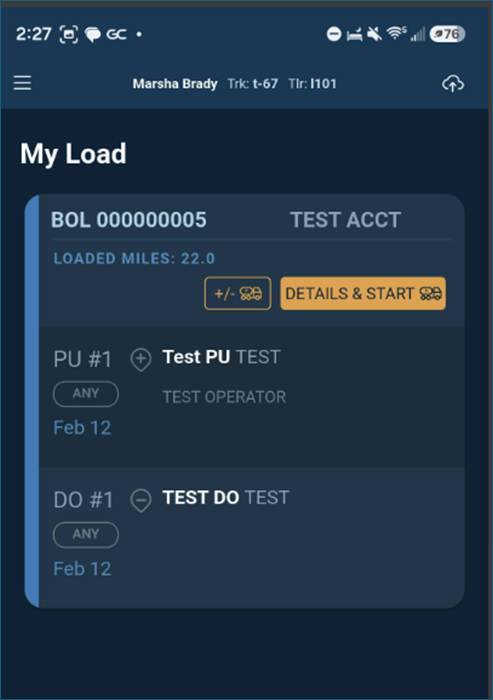
- Next, the driver will see the load's information assigned to them. They will click details and start and complete the driver workflow following the same steps your company drivers/owner Operators do.
- Once the load is completed, they will be returned to the My Load screen where they can see the load they completed, print an extra ticket or click Start Another Load. If they click Start Another Load, they will input a BOL # or Confirmation # and follow the same workflow.
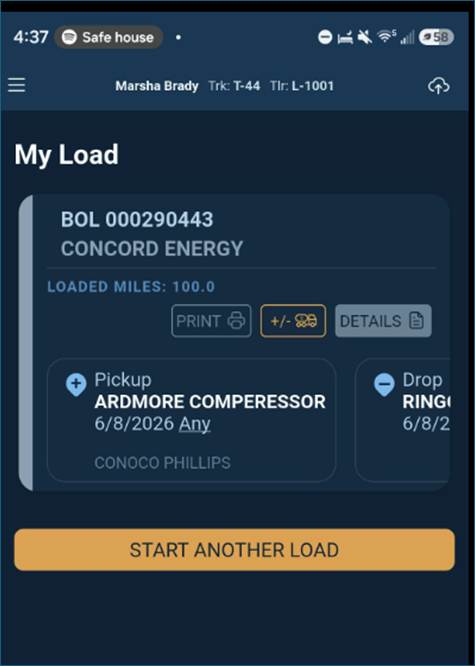
- If the driver is done completing their loads, in the top left menu bar,

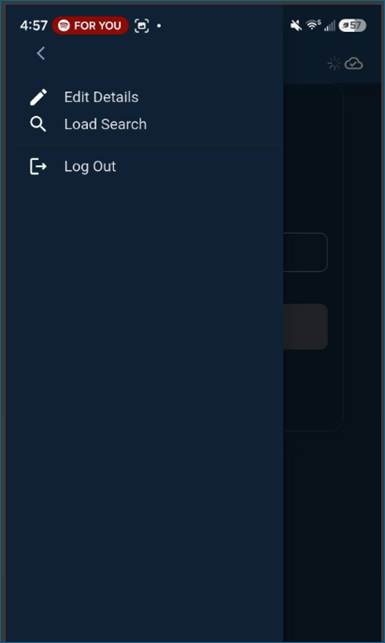
they can select the three-bar menu. Once opened they can select one of three options:
- Edit Details allows them to change their Driver Name, Truck # and Trailer #.
- Load Search allows them to search for another BOL # or Confirmation # to work on.
- The last option is to Log Out of the application. We recommend drivers always Log Out once they are done completing their assigned loads.
Mobile Bugs/Issues
- On the Pickup screen, when driver clicks on the Load Status drop down, the Reject Reason was partially being cut off if the reject reason had a longer description. This issue has been resolved.
- Required Field Asterisk has been made larger to ensure drivers do not miss it
- Navigation button on driving to Pickup or driving to Drop Off is now an Orange color to be more prominent.
- On Apple iPads, the numeric keypad was randomly popping up. This issue has been resolved.
- When driver prints a split ticket or multiple copies of a ticket, we have added additional blank white space to make it easier for driver to rip each ticket.
- When drivers are pairing to a printer, if there were multiple printers of the same model in the vicinity, it was automatically pairing to the closest one and didn't allow the driver to select. When pairing, the driver will be presented with all printers in the vicinity "Make/Model/Serial #" and the driver can select the correct one.
- If a driver was working on a split Pickup and the load was rerouted or edited when driver printed at the Drop Off it would only print 1st ticket. The same issue was occurring for split Drop Offs which were edited/rerouted. This issue has been resolved.
- If a load is completed with a Drop Off which has Skip Drop Off flag on, the completion Date/Time displays the Pickup arrival date/time and not the Pickup depart/time. This issue has been resolved.
- In rare use cases, Seal Off and Seal On date/times were not captured even though they were required. This issue has been resolved.
- For companies using motive, the HOS data was not always updating properly on the dispatch board. This issue has been resolved.
Was this article helpful?
That’s Great!
Thank you for your feedback
Sorry! We couldn't be helpful
Thank you for your feedback
Feedback sent
We appreciate your effort and will try to fix the article