New Mobile App
Enhancements
- Live Chat Feature: On the mobile app and portal, users and drivers can do live chat. Chat allows drivers and portals users to send messages to each other. A message can be sent to a single driver/user or to multiple.
- For all customers who are using the new mobile app exclusively, this feature will be rolled out company by company and will become available sometime between Thursday 9/3/26 thru Tuesday 9/8/26. Each company needs to be migrated individually.
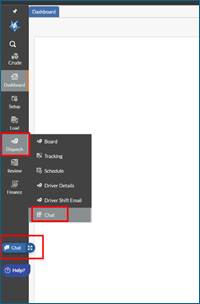
- On the portal user can click on chat floating icon OR on Dispatch > Chat
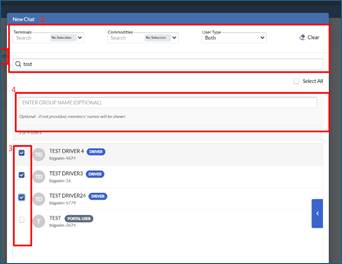
- To send a message, user will click Create new chat button and then filter or search for the user/driver they want to send chat message too. The user will select all or specific drivers and can create a group name for this channel.
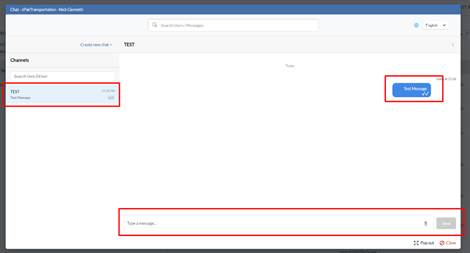
- Once a channel has been created, user can send messages and attach files, photos and videos to this group channel. All replies will be visible in the channel group. If a user is working elsewhere in the portal, a red unread notification will display next to the chat floating icon or Dispatch > Chat menu item.
- Users can also update the language in top right corner and translate to Spanish or French
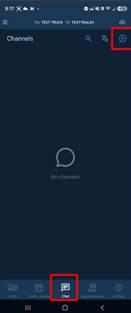
- When chat is turned on, a new Chat button will appear in bottom menu bar. When a new message is sent a unread notification count will display will appear next to Chat button.
- For drivers to create a new chat, they will click chat button then click + button in top right corner.
- Driver will search for the users/drivers they want to send a message to, select them and click Done. If they select multiple Users/Drivers they can give the channel a Group Name.
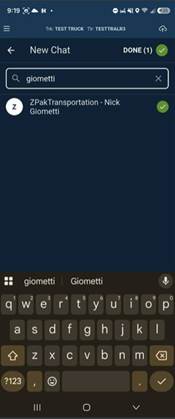
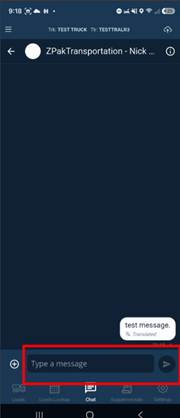
- Driver will type a message and click Send. Drivers can also click + button to add an attachment (ie photo, video, files)
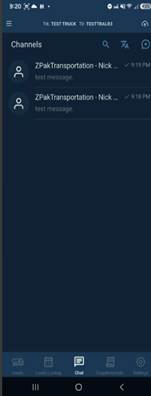
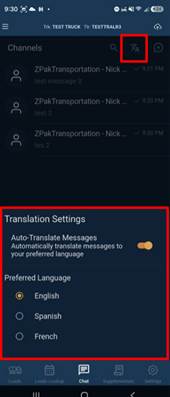
- When drivers click chat icon or after sending a message, click back button icon this will take them to all channels/group messages historically sent. Drivers can click into a channel/group message to see all messages sent.
- Drivers also have ability to translate messages to Spanish or French by select the language icon in top right.
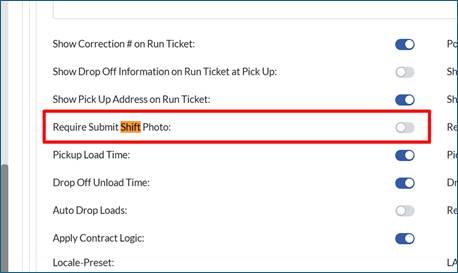
- Submit Shift Photo: When a driver is on the submit screen, a driver can now be required to take photo(s) of any end of shift documentation they may want to share with back office.
- On Setup > Admin > Company tab the feature can be turned on.
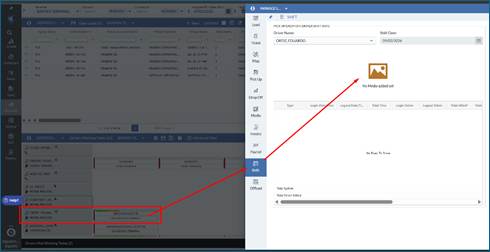
- Photos submitted by driver can be viewed on the Load/ticket > shift screen
Bugs/Issues
- End of Shift summary printouts have been enhanced to work with Bluetooth and airPrint. Formatting and layout have also been improved.
- When a driver logs in and if they skip their shift (entering truck, trailer), when they go to my Load screen, the screen would spin. This issue has been fixed
- For crude customers. On the Pickup screen, if the gauge field is defined and locked/read only for the specific Pickup location and the driver attempts to create a split, the Gauge Type was not auto-populating, and driver received a validation warning on preview/print/depart. When driver creates a split, the driver will now be able to select a Gauge Type.
- When printing a supplemental ticket using airPrint, the printout would be blank. This issue has been resolved.
- If a foot, inch, qtr inch field type was added to a dependency form, the field wrapped to a 2nd row on the Pickup or Drop Off screen. This issue has been resolved.
Was this article helpful?
That’s Great!
Thank you for your feedback
Sorry! We couldn't be helpful
Thank you for your feedback
Feedback sent
We appreciate your effort and will try to fix the article