Introduction
Alarms are frequently used in automated systems and are one of the most important features for many Users. This reference guide walks through the format of the Alarms Page in OnPing so that Users better understand how to utilize Alarm features.
Alarms are composed of several features, including:
- Alarm Creator
- This page is used to create and configure Alarms
- Alarm Log
- This page stores and displays information about Alarms available to the User
- Call Order
- This page is used to create, configure, and organize Call Orders.
- Calendar
Finding the Alarms Page
Alarms are a Static feature in OnPing. Unlike Widgets, which can be placed on Panels or removed from Dashboards, Static features are located on a fixed page. For many Users, Alarms is a bookmarked location.
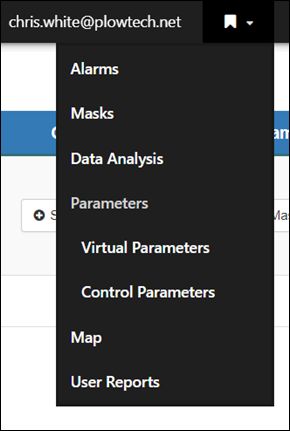
The Alarms Page appears at the top of the bookmarks in the above image
Selecting the ‘Alarms’ option from the bookmarks will bring you to the Alarms management section of OnPing. By default, Users will land on the Alarm Creator page.
In the navigation menu on the left side of the Alarms page, you should see a set of Links to useful Alarm Pages:
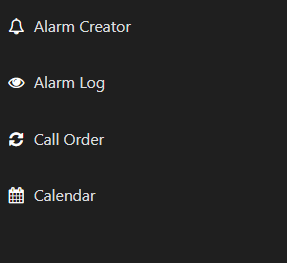
Alarm Creator
Alarm Creator is the Alarm editing tool for OnPing. This page is where Alarms are built, configured, and stored.

On this page, Users can:
- Create Alarms
- Configure Alarms
- Set Call Orders to determine recipients of Alarm messages
- Edit custom ‘Alarm Names’ to better inform Alarm recipients of the situation
- Toggle ‘Clear Call’ on or off
- Set User ‘Permissions’ to control who can edit or access Alarm setting information
- Manage the Alarm ‘Mask’
- Assign ‘Parameters’ to Alarms
- Activate or Deactivate Alarms
- Mass Activation and Deactivation is available
- Review Alarm Settings
- The ‘Existing Alarms’ section is filterable by Site, Location, Group, Company, or Call Order
- Find ‘Components’ of any Alarm in a User’s ‘Permission’ level
- Review current ‘Call Orders’ assigned to each Alarm
Alarm Log
The Alarm Log page tracks Alarm activity for Users.

Alarm data may be filtered by Site, Location, Group, Company, or Call Order, combined with a time frame for the search. Users can review basic Alarm settings and Call Order information for Alarms in the logs, and this is also where information about how often and when Alarms have been tripped is available.
Alarm data logged includes:
- Call Count
- ‘Trip’ and ‘Clear’ activity
- Call out recipients
- Time of Alarm activity
Select the best window for the set of Alarms in Review, then find a summary of the results at the bottom of the Alarm Log page.
Call Order
The Call Order page is where Users can create and manage Call Orders for Alarms.

This page contains:
- Available Call Orders
- A list of each Call Order currently Available to be assigned to an Alarm
- Unassigned User List
- A list of every User that can be assigned to Call Orders
- Active Call Order
- A list of each Call Order currently assigned to an Alarm
- Groups and Permissions
- Once a Call Order is selected, Groups and Permissions display the aforementioned data for the selected Call Order
Calendar
The Calendar page shows which Users are available and when, provided the schedules have been stored in OnPing.

On the Calendar page, select a Group and a User to view their schedule. The Calendar works well with Call Orders to confirm that Alarm callouts are going to the right place so the information can be acted upon.
Summary
OnPing has a robust Alarming system built into the platform. This document is intended to provide new Users with a navigational guide to the OnPing Alarming environment. Please contact an OnPing representative if you have questions regarding Alarms not answered in the available guides.
Was this article helpful?
That’s Great!
Thank you for your feedback
Sorry! We couldn't be helpful
Thank you for your feedback
Feedback sent
We appreciate your effort and will try to fix the article