This introductory guide shows Users how to review Logs for an Alarm. Before reading, you should be familiar with:
- Alarms Page Guide
- Introduction to Alarm Creator
- Alarm Components
Review Logs Guide
First, navigate to the Alarm Logs static page

Next, select a filter method for the Alarms. We will filter by ‘Sites’ in this example, meaning we will have access to information about each alarm at the selected Site.
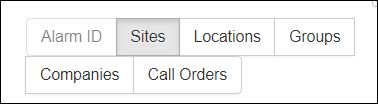
Make a selection from the options that appear. You can use the search bar to narrow the filter focus.
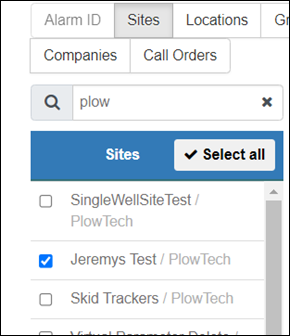
After choosing a site, we need to set the time frame we want to view information about. These options will appear beneath the Site selection menu.
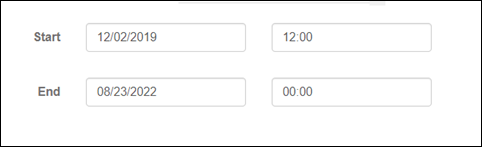
After choosing an observational window and selecting a site, Alarm Log data will begin to generate. You may see a prompt to wait for the Logs to load.


Awesome! Logs were available in the selected window.
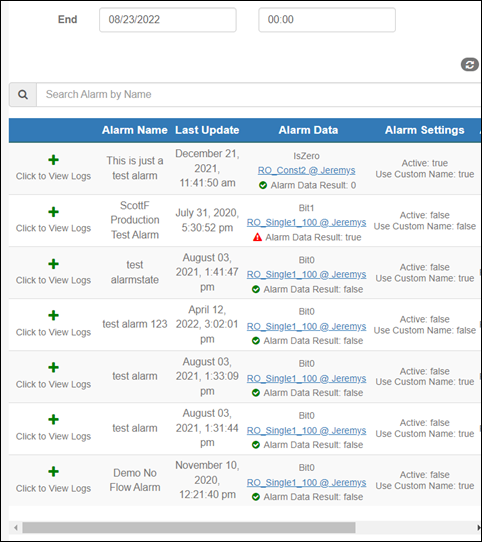
Click ‘View Logs’ on the Alarm you want to see information about. Let’s take a look at “This is just a test alarm”
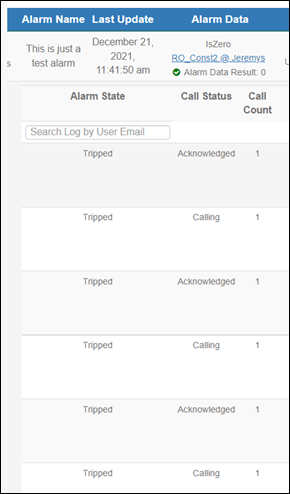
It looks like this demo alarm has been used before. We can see prior Alarm States, Call Statuses, and Call Count information in this image.
Also, Alarm Logs track the recipient of the callout and the time when the Alarm status changed.

Speaking of Users, you can search for Logs by User Email in the Alarm Logs as well!
Summary
Thank you for following along with this demonstration of the Alarm Logs page. If you need assistance tracking Alarm data in OnPing, please contact your representative.
Was this article helpful?
That’s Great!
Thank you for your feedback
Sorry! We couldn't be helpful
Thank you for your feedback
Feedback sent
We appreciate your effort and will try to fix the article