Adding links to a Custom Table in OnPing can enable quick access to external or internal pages and information. This guide will show you how to create Links in a Custom Table. Custom Tables are a versatile tool in OnPing and the ability to add links to other resources makes navigating through OnPing or connecting to other tools easy.
Prerequisites
This feature is available to all users with very little prior setup. The only prerequisites for creating links are:
- Destination addresses for the links
- An existing Custom Table (Review: How to Add a Custom Table Widget)
Getting Started
- Create a Custom Table
- Save your Dashboard to avoid deleting the newly added widget later
- Save your Dashboard to avoid deleting the newly added widget later
- Open the editing menu for the new Custom Table
- Click the wrench in the menu on the top right side of the widget. The editing menu for OnPing widgets may look something like this:

- Click the wrench in the menu on the top right side of the widget. The editing menu for OnPing widgets may look something like this:
- Opening the general widget editing menu should show us a few new options. We want to make changes to the information in the table, so we need to look for an option that indicates that.
- Select ‘Edit Table Contents’ from the new menu

- Select ‘Edit Table Contents’ from the new menu
- In this editing view, you should see a primitive-looking table and some new options in the widget menu. Go ahead and add a row to create a place for our link.

- After adding the row, you should see a place to add a Parameter. The table will look something like this:
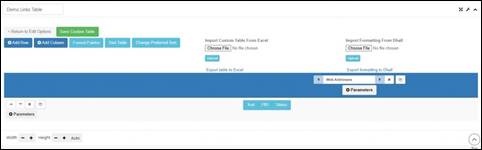
- Click the ‘Text’ button in the middle of the table to open a blank text box. This is where we will create our new link.
- In the text box, enter the ‘Label’ for the link and the destination address. For our example, we’ll create a link to the OnPing.net home page. The name of the link and address need to be input in the following format:
- [OnPing](/)
- [OnPing](/)
- Once the Link is added, use the ‘Save Custom Table’ button to keep the new changes.
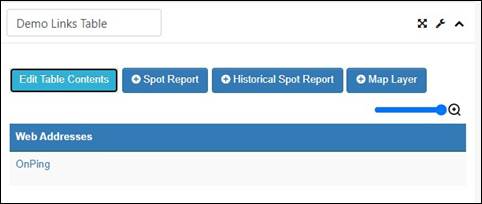
- When you are finished creating Links, return to the editing options to see the final result!

Using Links
What can be linked to?
Links are a very helpful tool for organizing your OnPing environment. A few examples of places you can link to include:
- Internal Dashboards
- Panels
- Important OnPing Information (Link to Important Documentation or Guides like this one!)
- External Websites
- Frequently Used Pages
- Training Material
Summary
One of the most used and most requested pre-built pages in OnPing is the ‘Shortcut Links to Add Location’ page:
Was this article helpful?
That’s Great!
Thank you for your feedback
Sorry! We couldn't be helpful
Thank you for your feedback
Feedback sent
We appreciate your effort and will try to fix the article